
Ubuntu server security checklist for a production VPS
An Ubuntu server security checklist covering tested SSH access, firewall exposure, Docker privileges, updates, application identities, secrets and recovery.
7 min read
In this article
A production server is not secure because SSH uses a different port or because a firewall reports active. An exposed database, a deployment account with unrestricted Docker access, an unpatched package or a backup stored only on the same disk can defeat those measures. Hardening needs an inventory and a recovery path.
This Ubuntu server security checklist builds a practical baseline for an Ubuntu 24.04 VPS running web applications. We will review administration, listening ports, patches, application identities, secrets, monitoring and restoration. It complements our Laravel Ubuntu deployment guide; it does not replace application-level authorization or a threat model.
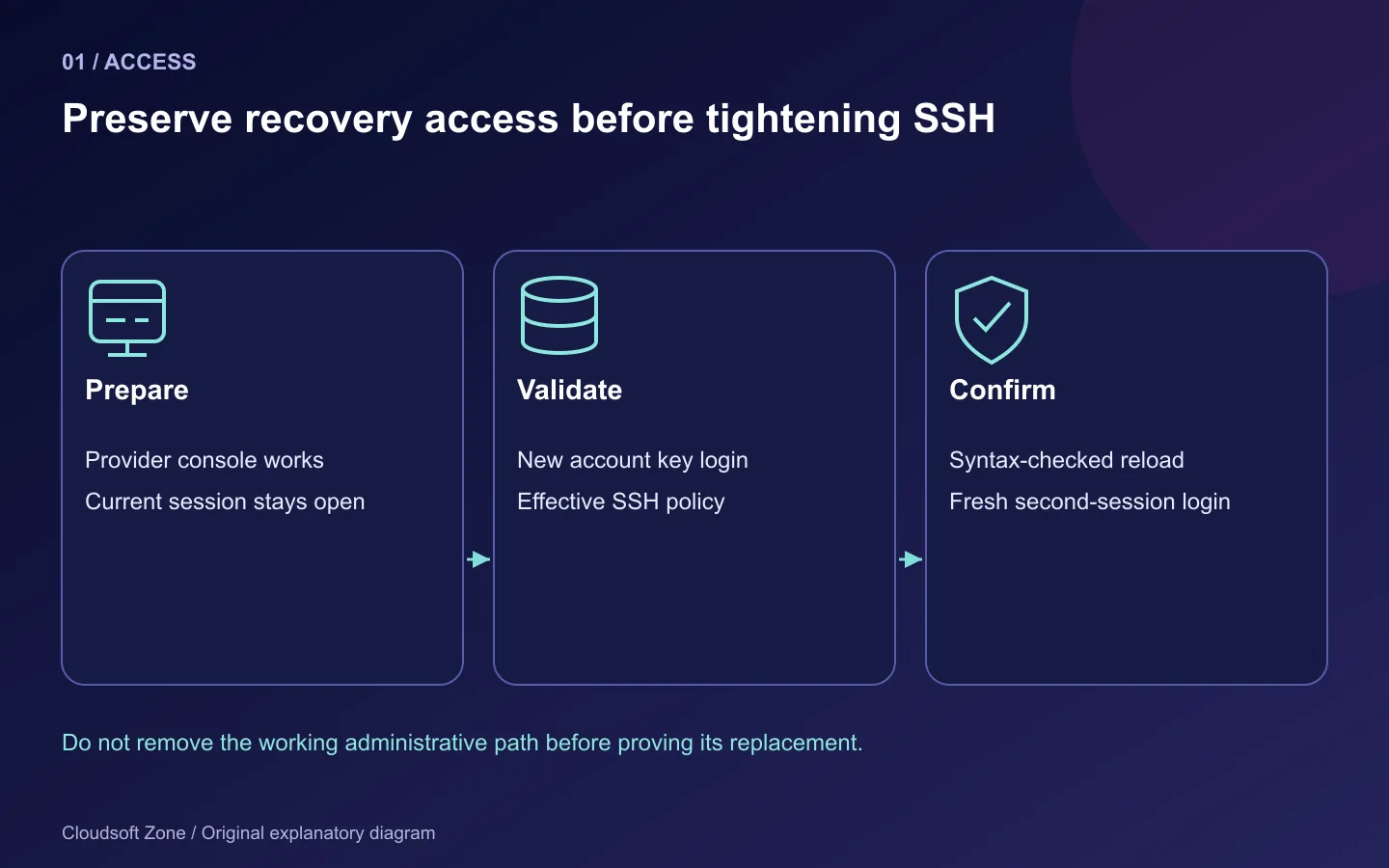
Before changing SSH or firewall rules, confirm provider-console access, keep the current administrative session open and test every change from a second session. Work through the procedure on an isolated staging server first. The examples deliberately avoid reset commands and broad permission changes that can destroy retained configuration.
Step 1: Inventory the actual exposure
Record the server's purpose, public addresses, administrator access path, application identities and retained data. Include IPv6 and any provider firewall. A service bound to every interface may be reachable even when the operator normally connects through a private address.
sudo ss -ltnup
sudo systemctl --failed --no-pager
sudo ufw status verbose
Inspect results privately. Process details and addresses can reveal your architecture. Classify each listener: public web edge, administrative access, private database, queue, monitoring or management UI. For each public listener, identify the owner and intended users.
A simple SaaS VPS often needs public 80/443, restricted SSH and private database/Redis services. It does not need MySQL, Redis, a database browser and a storage console published to the whole internet. Verify the real network surface from an authorized external client; configuration on disk is not enough.
Step 2: Use named administrators and tested SSH keys
Give each administrator an individual account and a revocable key. Keep application execution separate from administrative access. A shared root key makes it difficult to revoke one person or attribute a change.
Verify the new account can authenticate with its key and use the intended administrative privileges before tightening authentication. Review authorized_keys, directory ownership and permissions. Protect the administrator's workstation keys with an appropriate passphrase or hardware-backed policy.
After a successful second-session login, review an SSH snippet such as:
PubkeyAuthentication yes
PermitRootLogin no
PasswordAuthentication no
These are policy examples, not a complete authentication design. If you use PAM-based multi-factor authentication, review keyboard-interactive authentication and AuthenticationMethods together; disabling a method blindly can disable your second factor. Restrict accounts with allowlists where appropriate, and preserve a documented recovery account policy.
Ubuntu's included snippets and OpenSSH's effective-value rules can make a setting differ from the last line you edited. Validate syntax and inspect the effective configuration before reloading:
sudo sshd -t
sudo sshd -T
For Match rules, inspect the intended user/address context too. Do not close the old session until a fresh connection succeeds after the controlled reload. Changing the SSH port alone is not a substitute for strong authentication and limited access.
Step 3: Add firewall rules without locking yourself out
Decide whether SSH is restricted through a provider firewall, VPN, bastion or host rule. Allow the actual administrative path before enabling a default-deny incoming policy. If SSH really uses port 22 and your fixed administration address is known, a staging example is:
sudo ufw allow from 203.0.113.10 to any port 22 proto tcp
sudo ufw allow 80/tcp
sudo ufw allow 443/tcp
sudo ufw default deny incoming
sudo ufw default allow outgoing
sudo ufw status numbered
203.0.113.10 is a documentation address: replace it with the real approved source or use the intended VPN policy. Review existing rules before enabling UFW. Do not paste this block if your SSH port or administrative route differs. Enable the reviewed policy only while console recovery and a second-session test are available.
Check IPv6 handling and the provider's network policy as well. A hostname may resolve to an IPv6 address with different reachability. Restricting outgoing traffic requires a workload-specific allowlist for DNS, updates, email, payment APIs and object storage; a broad block can break the application in unexpected ways.
Step 4: Review Docker's network and privilege boundary
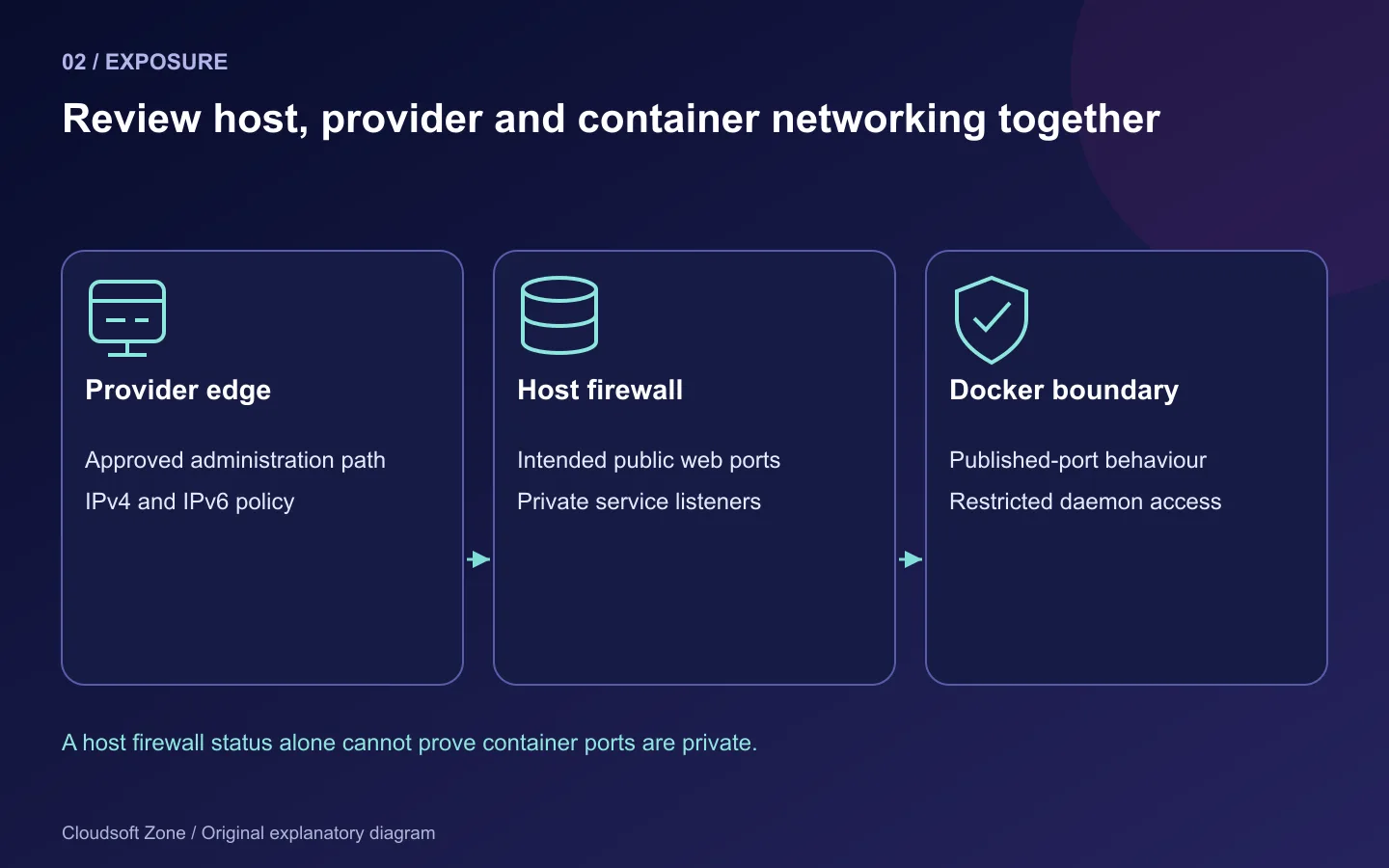
Docker published ports and forwarding rules can bypass assumptions based on UFW alone. Review Docker's documented packet-filtering behaviour for the actual firewall backend and bind private services to loopback or private networking intentionally. Do not disable Docker's firewall management casually; that can break isolation and connectivity.
Treat access to a privileged Docker daemon as highly privileged host access. Do not add every developer or web-service account to the Docker group. Never mount the Docker socket into a public web application merely to offer a convenience feature.
Rootless operation can reduce specific daemon risks, but it has its own operational constraints and does not eliminate application vulnerabilities. Keep containers non-root where supported, avoid unnecessary capabilities and privileged mode, and mount only the required host paths.
Step 5: Establish a patch and reboot policy
Keep Ubuntu security updates enabled under a deliberate operating policy. Review repository origins and package support, especially when adding a third-party PHP or Node repository. A familiar version number is not evidence of timely security maintenance.
sudo apt update
apt list --upgradable
sudo unattended-upgrade --dry-run
Confirm the unattended-upgrades tooling is installed before using its command. Review dry-run output privately and verify the configured allowed origins. Do not assume an unattended-update mechanism upgrades arbitrary application dependencies, container images or every external package repository.
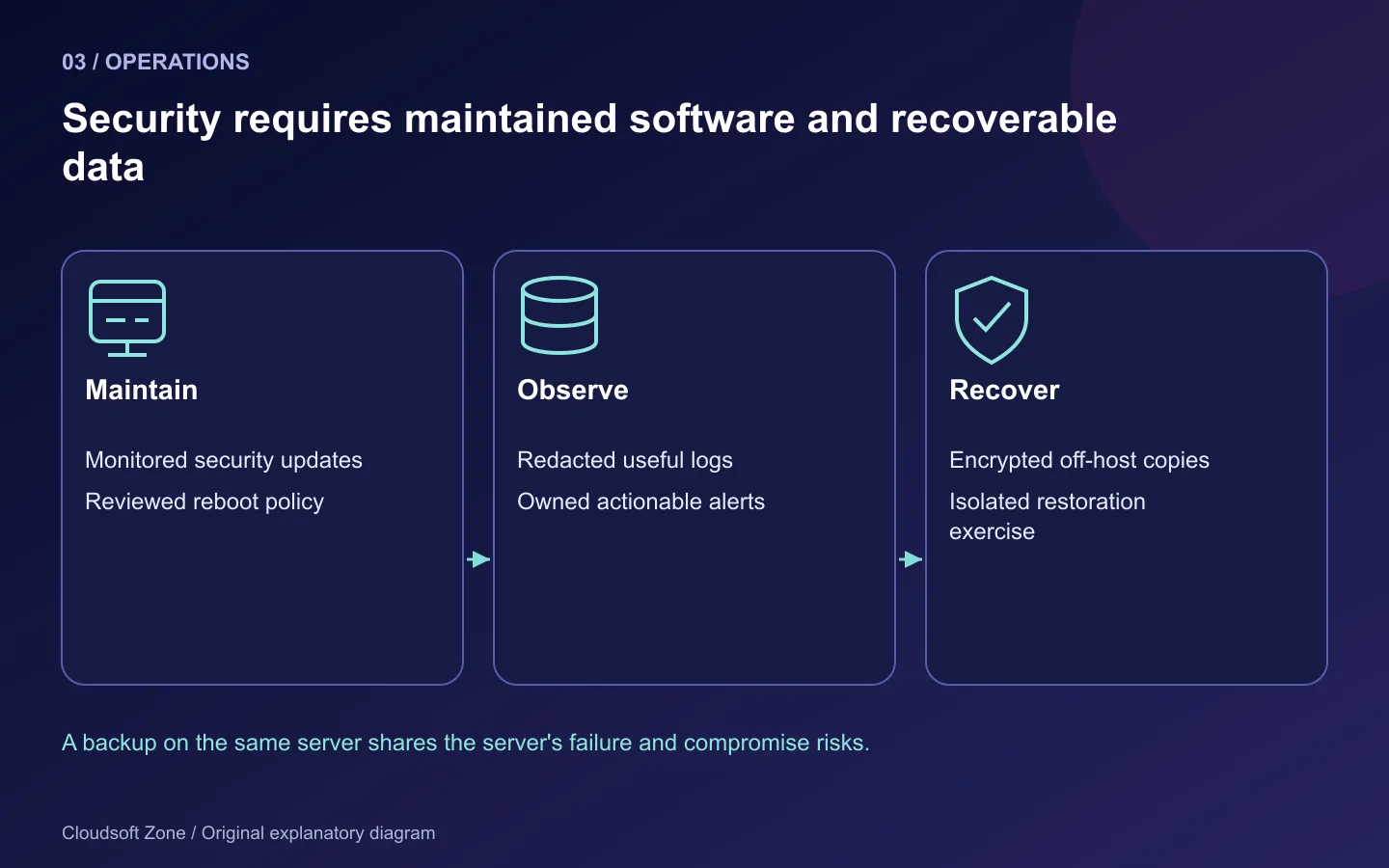
Define who checks failed updates and reboot requirements. Kernel and service updates may need planned restarts; unattended automatic reboot should be an explicit decision. Rehearse patched application images and dependency upgrades through the release pipeline instead of leaving mutable packages to drift independently on each server.
Record the installed package build and distribution security status. Distribution backports can fix issues without changing the version to match an upstream release, so evaluate the distribution's actual advisory rather than comparing patch strings alone.
Step 6: Restrict application identities and secret access
The request process should write only the paths it needs. For Laravel, writable storage and bootstrap cache do not imply that PHP should own the complete source tree. For Node, uploads and generated cache files need an explicit policy; the application should not be able to replace its own deployment artifact.
Review the path and ownership before changing permissions:
namei -l /srv/laravel-app/current/public/index.php
namei -l /srv/laravel-app/shared/storage
Avoid broad chmod -R 777 fixes. Use an intentional group or ACL for shared writable directories and verify both deployment and request identities. Protect environment files, generated configuration caches and backups containing secrets. Exclude them from public web roots, image build contexts and support attachments.
Use application-specific database users and reviewed runtime privileges. Keep administrative and migration credentials out of normal request processes. Protect Redis with the intended network and authentication policy. A firewall reduces reachability; it does not replace database authentication.
Step 7: Preserve confinement and useful evidence
Inspect AppArmor status where the server uses it, and investigate denials before weakening profiles. Disabling confinement globally to fix one path error removes protection from unrelated services. Make the smallest reviewed profile adjustment appropriate to the actual application.
Maintain logs for authentication failures, privilege use, application errors and unexpected process restarts. Centralize important evidence off-host where practical, with limited access and a retention policy. Never log full authorization headers, session cookies or secret-bearing environment dumps.
Alert on actionable events: repeated failed administrative logins, unexpected listeners, disk exhaustion, stale backups and an application readiness failure. Choose an owner for each alert. A dashboard nobody checks is not an operating control.
Step 8: Rehearse recovery as part of security
| Control | Verification evidence |
|---|---|
| Administration | Fresh key login works; revoked access stops working |
| Network | Only approved listeners reachable over IPv4/IPv6 |
| Patching | Updates monitored and reboot process documented |
| Application identity | Writes limited to required paths |
| Secrets | Private files and logs reviewed for exposure |
| Recovery | Database, uploads and keys restored on an isolated host |
Keep encrypted off-host backups and test restoration. A server snapshot can be useful, but it may not provide application-consistent database recovery and it does not automatically protect against account compromise or retention mistakes. Record recovery-point and recovery-time objectives that the tested procedure can actually achieve.
If you suspect compromise, preserve evidence and follow an incident process rather than repeatedly restarting services or deleting logs. Rebuild from a trusted artifact and rotate affected credentials through a controlled plan when appropriate.
The baseline is complete only when access, exposure and recovery have been verified. Review the Compose production checklist for container-specific controls. For an application-focused server review, contact Cloudsoft Zone.
Featured image: Cloudsoft Zone explanatory layout with sourced product artwork: ubuntu — Canonical Ltd (Public domain). Product marks resized and arranged for identification; no endorsement implied. Layout: CC BY-SA 4.0.
Frequently asked questions
Should I disable SSH passwords before testing keys?
No. Prove the intended key login in a second session and retain console recovery before changing authentication.
Does active UFW guarantee Docker-published ports are blocked?
No. Review Docker's actual packet-filtering behaviour and verify exposure externally for the intended host.
Is moving SSH to another port enough?
No. Use strong authentication, restricted access, named accounts and monitored updates; a different port does not replace those controls.
Your next customer could start right here.
Introduce your tool, product or business to readers exploring technology.
Explore placements and request a private quote
Sources
- Ubuntu OpenSSH server — Canonical
- Ubuntu firewalls — Canonical
- Ubuntu automatic updates — Canonical
- Docker packet filtering — Docker
- Ubuntu AppArmor — Canonical
Comments
No comments yet. Be the first to join the conversation.
Leave a comment
Every comment is read by a moderator before it appears. Your email address is never published; it is used only to contact you about this comment.
More from Cloudsoft Zone
TutorialDevOps
Next.js NestJS Docker Compose deployment with MySQL and Redis
Build a Next.js NestJS Docker Compose stack with standalone web output, compiled API images, private MySQL and Redis, secret files and persistent volumes.
By Cloudsoft Zone
Resource guideDevOps
Docker Compose production checklist: health checks, secrets and volumes
A Docker Compose production checklist for immutable images, readiness, private networks, secret files, persistent volumes and compatible recovery.
By Cloudsoft Zone
TutorialDevOps
Laravel queue workers in production: Redis, Supervisor and failed jobs
Run Laravel queue workers with Redis and Supervisor, aligned timeouts, safe retries, graceful release restarts and deliberate failed-job recovery.
By Cloudsoft Zone