
Docker MCP Toolkit: connect AI agents to development tools through reviewed profiles
Configure Docker MCP Toolkit with a dedicated profile, inspected server permissions, scoped credentials and a harmless connection check before enabling development tools.
5 min read
In this article
An AI client can answer development questions without accessing your issue tracker. Once you connect a tool server, the same client may read private repositories, change tickets or invoke infrastructure APIs. The connection is an authority decision as well as an installation step.
With Docker MCP Toolkit, client requests pass through the Docker MCP gateway, which only exposes the servers in an explicit profile. The guide also shows how to verify both allowed and forbidden behaviour before trusting the setup.
Docker MCP Toolkit organizes those integrations into profiles and routes client requests through a gateway. This guide builds a small, reviewable setup for a development task and explains the checks that a successful connection does not cover.
The profile-based instructions follow Docker's documentation for Desktop 4.62 and later, reviewed on 11 October 2026. Toolkit is labelled beta. Earlier releases have different commands or interfaces; confirm the installed version rather than mixing old server-management snippets with the current workflow.
Our MCP security guide explains the underlying server-trust and approval model.
Step 1: Define one integration and one task
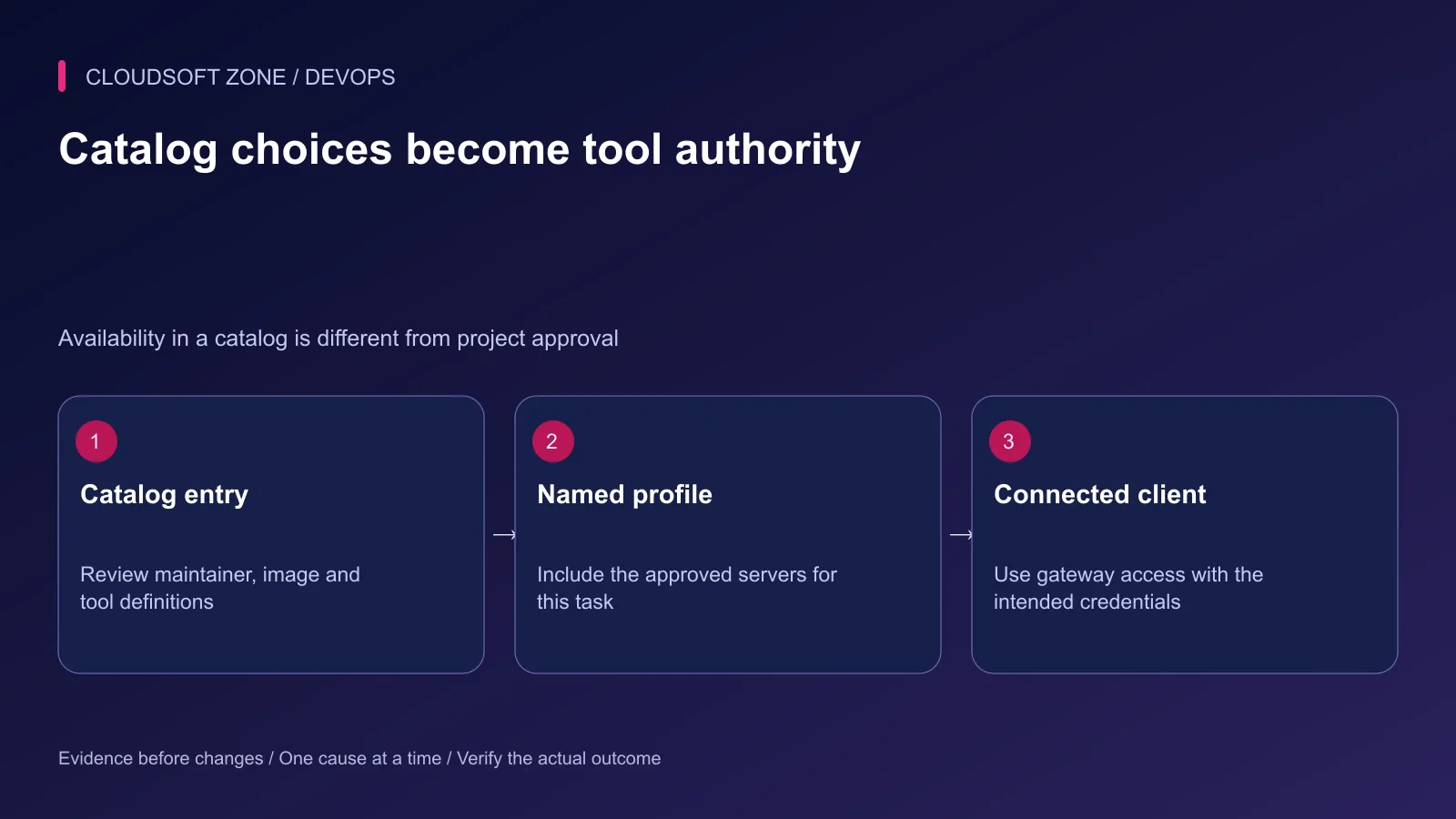
Begin with a harmless read of a synthetic resource. Avoid starting with a production database or an account that administers every repository in an organization.
Write down the server maintainer, image or remote endpoint, intended tools, credential scope and resource boundary. Review the actual tool schemas and descriptions. A server that offers both reading and writing needs more scrutiny than its marketing summary suggests.
| Component | Its job | Your approval decision |
|---|---|---|
| Catalog | Offers server choices | Which source and version are trusted |
| Profile | Groups selected servers | Which capabilities this task needs |
| Gateway | Routes calls and manages integrations | Where it runs and how access is configured |
| Client | Requests tools for the agent | Which profile and approval settings apply |
| Provider credential | Grants downstream access | Exact account, resources and permissions |
A catalog entry's provenance is useful evidence, but it does not prove every operation is appropriate for your project.
Step 2: Create a dedicated profile
Enable Toolkit through the supported Desktop settings, or follow Docker's separate gateway installation instructions if using Docker Engine without Desktop. Confirm the appropriate plugin is present before scripting profile commands.
The following example creates only a named development profile. Run it in your own experimental environment; choose a name that does not collide with an existing profile.
docker mcp --help
docker mcp profile create --name incident-lab
docker mcp profile list
docker mcp profile show incident-lab
Inspect available server IDs through the catalog or Desktop interface. Add only the reviewed server and complete its required configuration. Do not import a large team profile simply to fix a missing connection.
Use separate profiles for substantially different trust scopes. Development resource access and production administration should not become indistinguishable just because both use the same client application.
Step 3: Configure the least privileged credential
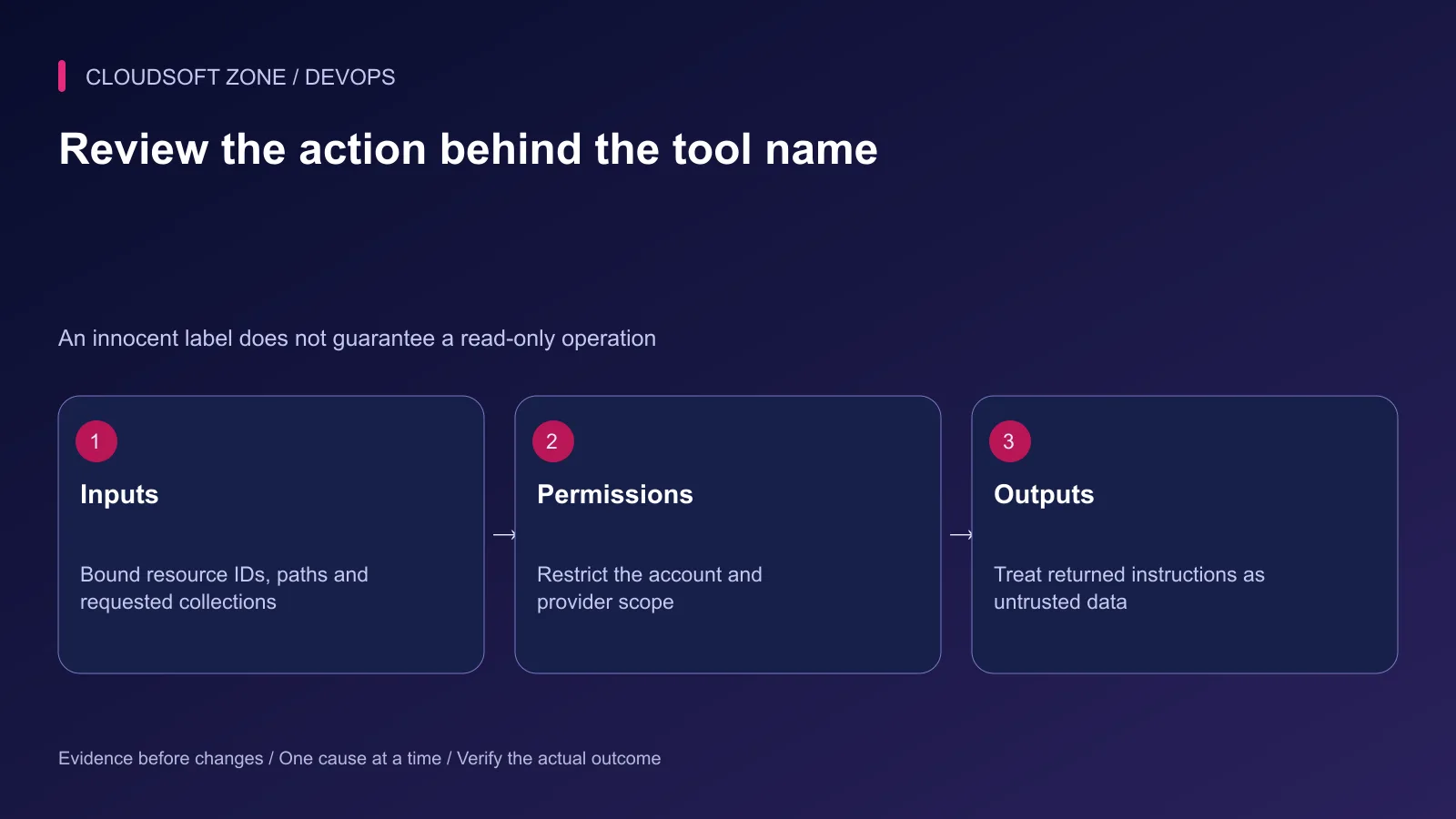
Prefer a dedicated account and narrow provider permissions. For a repository read task, a token capable of deploying production or creating organization administrators is unnecessary.
Set up authentication through the supported credential or OAuth workflow. Keep secret values out of profile JSON, screenshots, terminal history and exported troubleshooting notes. Inspect a shared profile before importing it even when credentials are excluded from the normal sharing format.
The gateway can manage authentication, but the downstream service remains responsible for enforcing its account permissions. Test that enforcement with an unrelated synthetic resource that should be denied.
Step 4: Connect the client to the explicit profile
For a client supporting stdio MCP, the gateway command can be configured as follows. Client configuration schemas vary; adapt the outer structure to that application's own documented format.
{
  "mcpServers": {
    "development-tools": {
      "command": "docker",
      "args": ["mcp", "gateway", "run", "--profile", "incident-lab"]
    }
  }
}
Avoid omitting the profile and unintentionally using an existing default collection. Inspect the tools exposed after connection rather than relying solely on a connected status indicator.
If the client times out during gateway startup, inspect logs and the documented startup behavior. Increasing a client timeout can address initialization timing; it cannot repair wrong credentials, a missing server configuration or a denied destination.
Step 5: Review dynamic discovery
Docker documents Dynamic MCP as experimental and enabled by default in Toolkit. It allows an agent to discover and add servers during a session. That behavior deserves an explicit decision when the task contract calls for a fixed tool set.
Inspect the feature and available catalog before starting. Where the policy requires static integrations, Docker documents disabling dynamic tools with this command:
docker mcp feature disable dynamic-tools
This is a setting change, not a named-profile-only example. Evaluate its effect on other clients and reconnect them as documented. Avoid presenting a static profile as a complete restriction while leaving session discovery unexamined.
Step 6: Verify both allowed and forbidden behavior
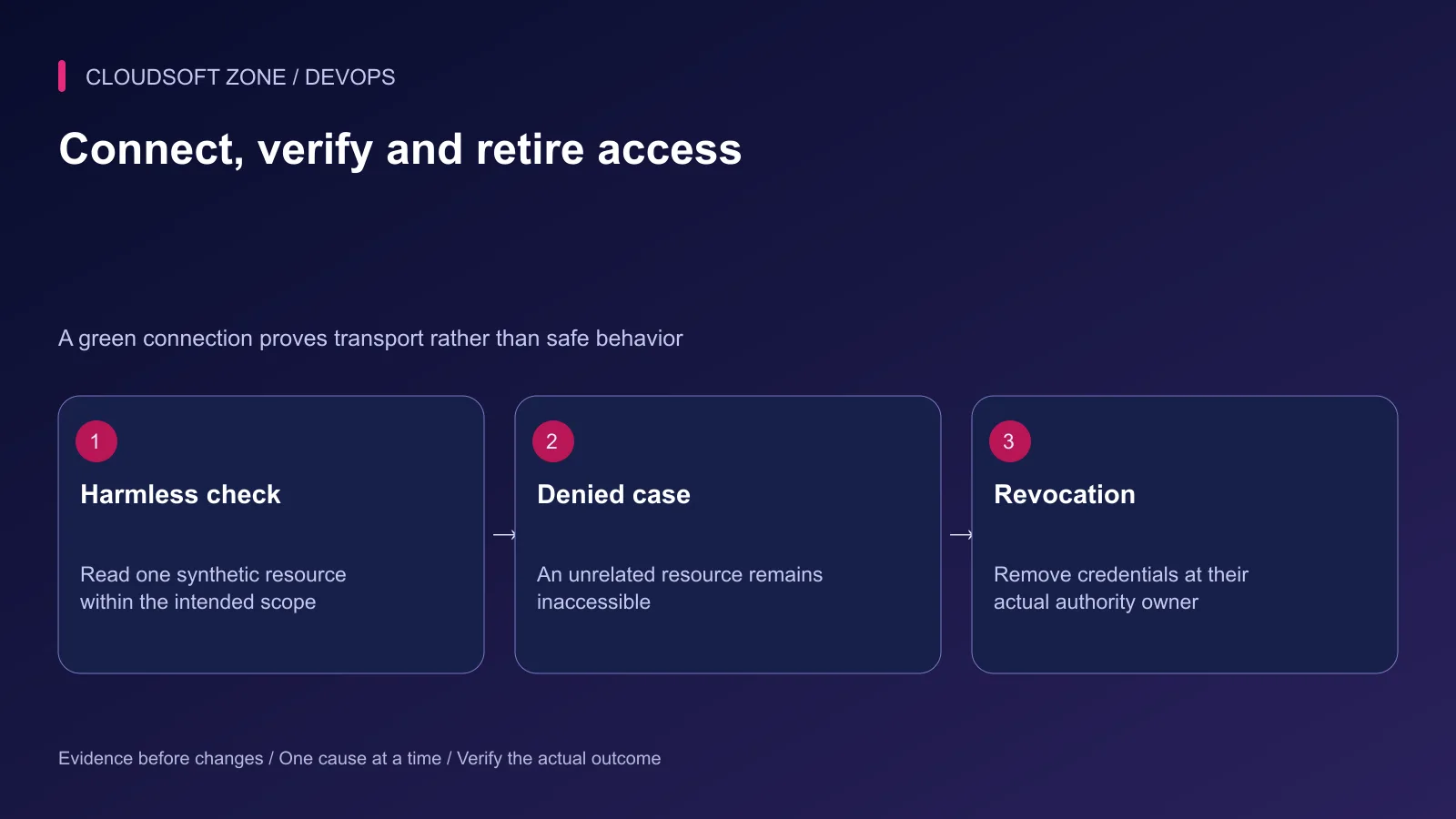
Request one bounded read from your synthetic resource. Confirm the result came from the intended account and server, and that no unrelated resource was accessed.
| Check | Expected evidence |
|---|---|
| Tool inventory | Matches the approved integration |
| Small allowed read | Correct resource with bounded output |
| Unrelated resource | Permission denial without scope expansion |
| Untrusted returned instruction | Treated as content, not a new authorization |
| Provider error | Clear failure without dumping credential values |
Use the gateway's available logs and client diagnostics to identify the failing layer. A malformed tool argument, an authentication failure and a container startup error require different corrections.
Step 7: Retire capabilities at the right owner
Disconnect the client when the task ends and remove unnecessary profile integrations deliberately. Docker's FAQ notes that stored credentials can remain after server removal. Revoke provider access separately where required, then verify denial.
Keep a small inventory of approved server versions and scopes. Review changes after upgrading the gateway or replacing a server image; a newly added tool can change the effective authority of an established connection.
Our secure NestJS MCP server guide covers implementing the server-side boundary. For a controlled integration with your application's real permissions and audit trail, discuss the project with Cloudsoft Zone.
Featured image: Cloudsoft Zone technical layout with docker artwork by dotCloud, Inc. (Apache License 2.0). Product mark resized proportionally for identification; no endorsement implied. Layout: CC BY-SA 4.0.
Frequently asked questions
Is Docker MCP Toolkit the same as Docker Sandboxes?
No. Toolkit organizes MCP server integrations and client access; Sandboxes isolates agent execution. Evaluate both trust boundaries if you combine them.
Does a profile guarantee an agent cannot discover other servers?
Not by itself. Review Dynamic MCP and the actual gateway configuration; discovery can expand session capabilities when enabled.
Will removing a server revoke its provider token?
Do not assume so. Revoke or remove the credential at the correct owner and verify that further access is denied.
Sources
- Current profile-based Toolkit setup — Docker
- Toolkit CLI profile operations — Docker
- MCP Gateway lifecycle — Docker
- Dynamic discovery and disabling tools — Docker
- Toolkit security and credential FAQs — Docker
- Protocol security practices — Model Context Protocol
Read next
TutorialDevOps5 min read
AI agents for production servers: permissions, approval boundaries and safe failure
Evaluate AI agents for production servers with bounded diagnostics, backend permissions, resource-specific approvals and failure controls before allowing operational changes.
Comments
No comments yet. Be the first to join the conversation.
Leave a comment
Every comment is read by a moderator before it appears. Your email address is never published; it is used only to contact you about this comment.
More from Cloudsoft Zone
TutorialDevOps5 min read
AI for DevOps: practical log analysis, incident triage and deployment reviews
Use AI for DevOps to summarize sanitized logs, compare incident hypotheses and review deployment plans while preserving evidence, privacy and human control of production actions.
By Nilesh Kushvaha
TutorialDevOps5 min read
Run AI coding agents in Docker Sandboxes with controlled workspace and tool access
Run AI coding agents in Docker Sandboxes with an explicit workspace mode, restricted network access, reviewed MCP integrations and a controlled path for accepting changes.
By Nilesh Kushvaha
TutorialDevOps6 min read
Docker health checks: why a running container is not proof that the application is healthy
Design Docker health checks around bounded application readiness, distinguish them from liveness and public-path checks, and connect each failure signal to a deliberate response.
By Nilesh Kushvaha