
PM2 app disappears after server restart: diagnose startup, users and saved process state
If a PM2 app disappears after server restart, check the daemon owner, boot service, saved process list, runtime path and application startup failure before restoring it.
5 min read
In this article
The VPS restarts and nginx returns an upstream error. You open a shell, run PM2 and see an empty process list. Starting everything with sudo appears to fix it, but now the application has a second daemon owner and an unclear next-reboot story.
When a PM2 app disappears after server restart, separate visibility, boot recovery and application startup. The checks confirm the intended PM2 owner, inspect the PM2 startup systemd unit, review runtime changes and saved process state before resurrection and diagnose applications that keep restarting.
When a PM2 app disappears after server restart, separate visibility, boot recovery and application startup. This guide checks the intended operating account, saved process state, startup unit and runtime paths before making a targeted correction.
Use our nginx HTTPS guide to distinguish a public proxy failure from a missing private application. The commands here are operator examples for the reader's intended application, not instructions to restart every service on a host.
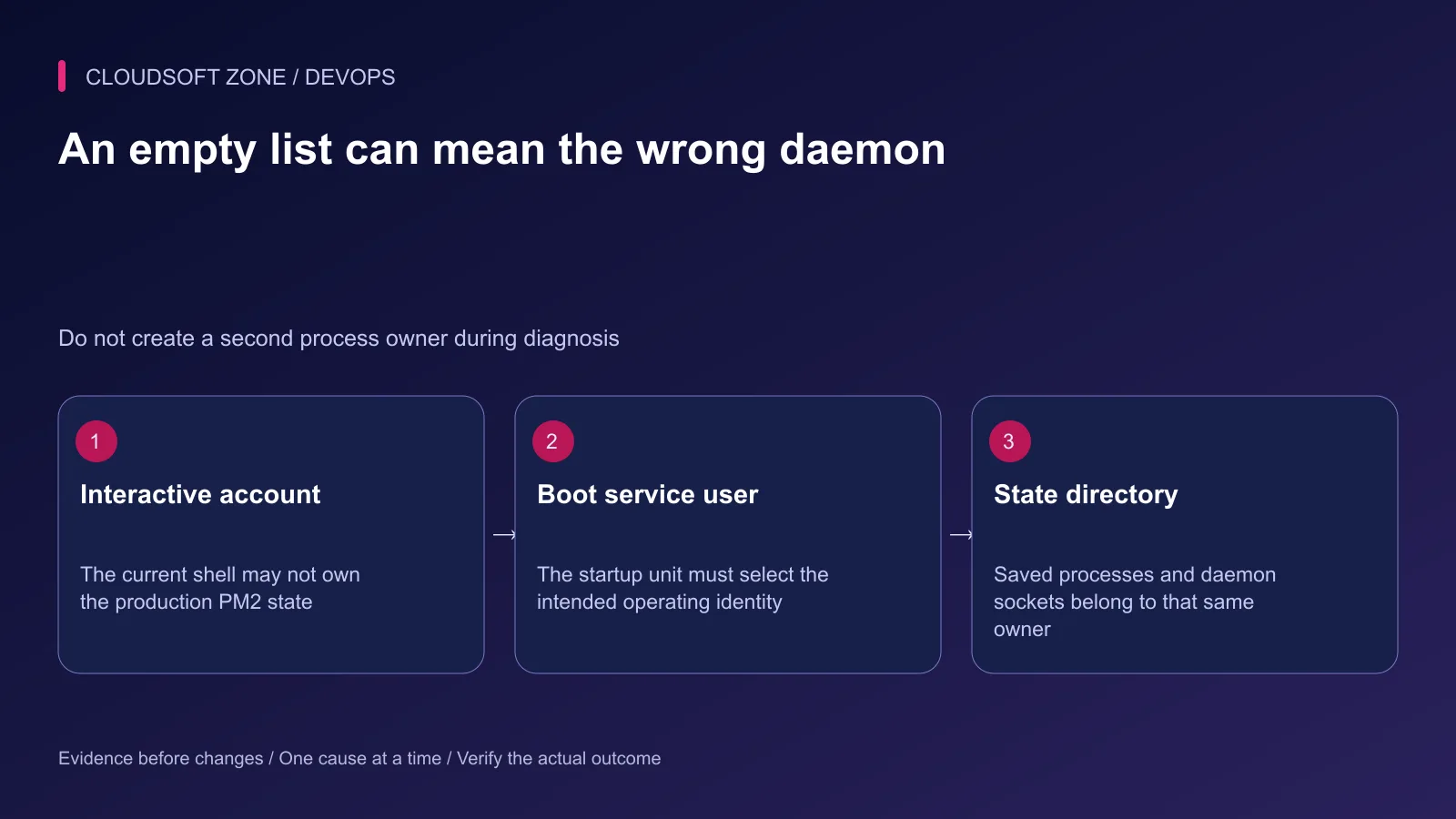
Step 1: Confirm the intended PM2 owner
Find the application's documented operating account and PM2 state location. Check the current shell identity before reading the process list. Running PM2 as root or another user can connect to a different daemon or create one.
id -un
Compare that result with the intended application account. Use the established account-switching procedure with its real home and environment. Do not override the system HOME variable with a temporary directory to make commands appear to work.
Also check whether the deployment intentionally uses a custom PM2_HOME. It must agree between interactive management and the startup service. An empty list from another state directory is not evidence that the production saved state was deleted.
Step 2: Separate the visible failure states
| Observation | Likely boundary to inspect |
|---|---|
| Empty list under the wrong user | Daemon identity and state directory |
| Startup unit missing or disabled | Boot service configuration |
| Startup unit failed immediately | Executable path, permissions or service inputs |
| PM2 daemon runs but app is absent | Saved process list and resurrection |
| App exists but repeatedly restarts | Artifact, working directory or dependency startup |
| App responds directly but nginx fails | Proxy upstream address or routing |
Record the original reboot time and sanitized failure evidence. Do not start a replacement before understanding which existing process owner should have recovered it.
Step 3: Inspect the actual boot unit
PM2 startup generation creates a platform-specific service. On a systemd host, use the intended unit name from the deployment record. The example below is not a claim that every unit is named this way:
systemctl is-enabled pm2-example-app.service
systemctl is-active pm2-example-app.service
systemctl show pm2-example-app.service -p User -p FragmentPath
Inspect detailed service status and boot logs only through the protected operating path; they can contain application diagnostics. Avoid commands that dump the whole service environment or private credential values into shared transcripts.
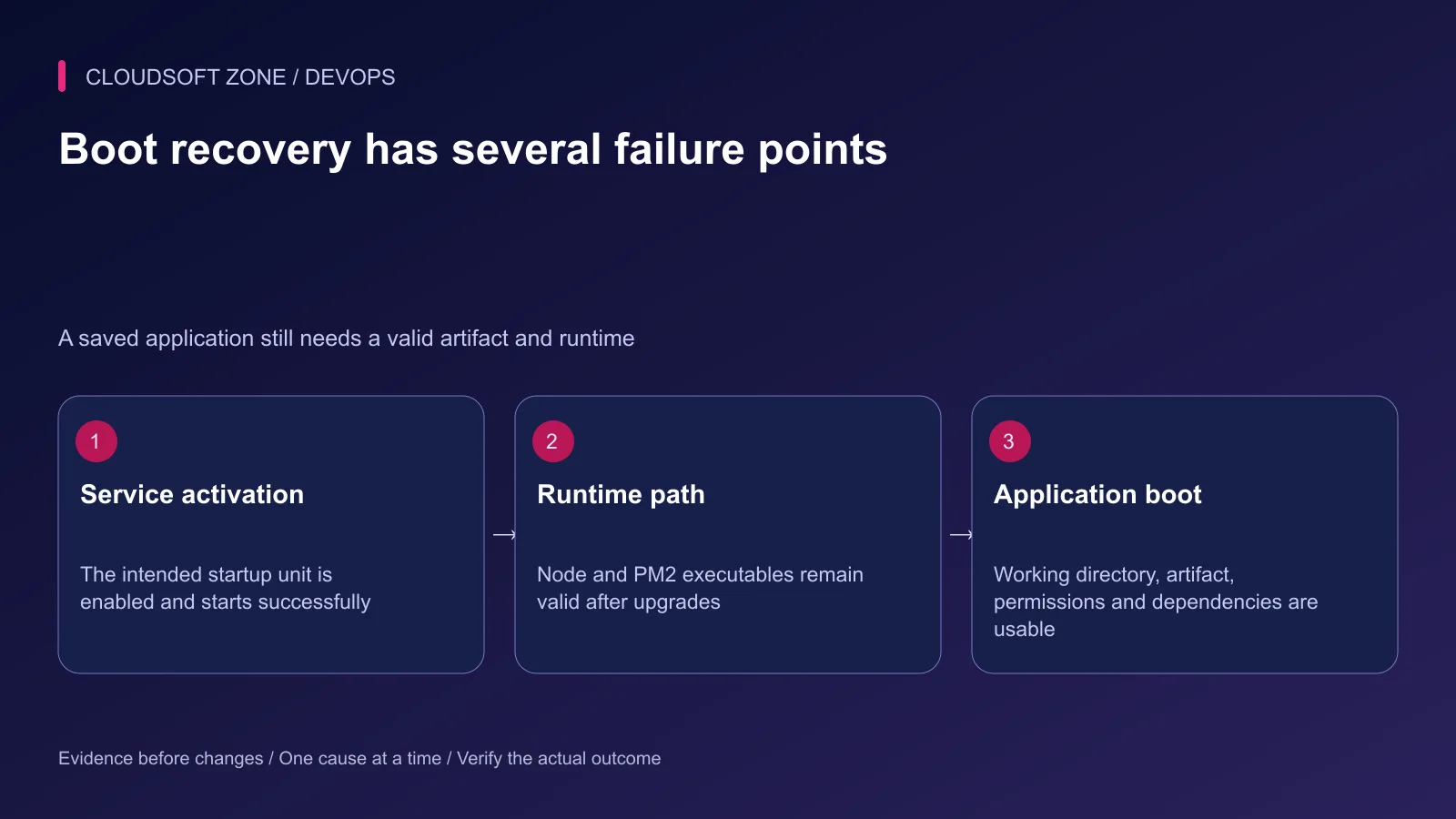
Check that the unit uses the intended account, state directory and valid Node/PM2 executables. Enabling a service is not enough when its executable path no longer exists.
Step 4: Check runtime changes since setup
A Node version manager can place the executable under a version-specific directory. After an upgrade or removal, a generated startup service may still reference the old location even though an interactive shell uses the new runtime.
Review the runtime path in the actual service configuration. Compare it with the supported runtime selected by the deployment. Follow PM2's documented startup-regeneration procedure when the Node installation changes, inspecting the generated elevated command before applying it.
Do not solve this by installing a random second Node runtime as root. Keep one reviewed ownership and upgrade path, and verify the application artifact against it.
Step 5: Review saved process state before resurrection
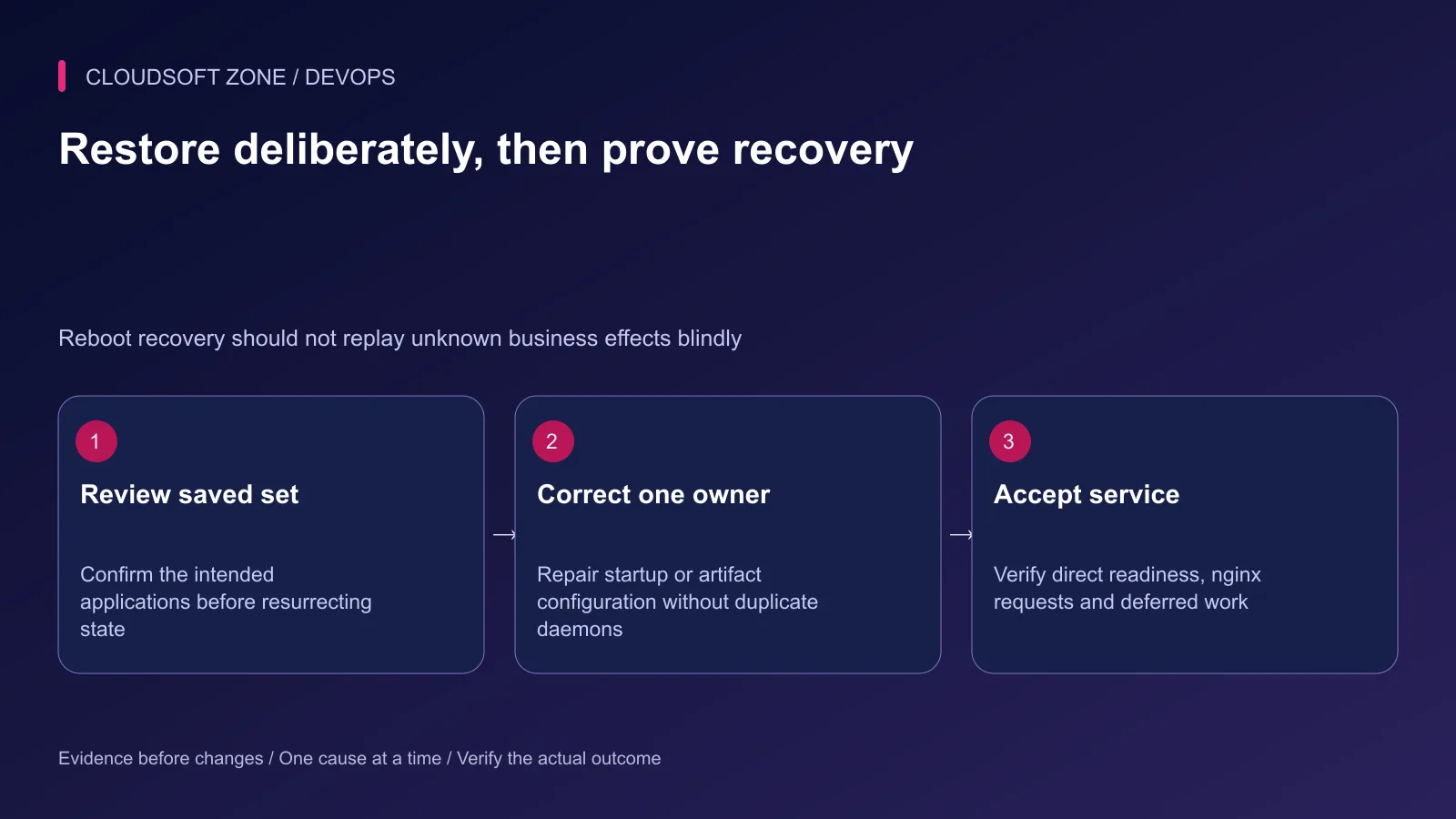
The live daemon list and the saved boot list are different states. A process started yesterday is not automatically part of a known-good reboot set. Confirm which applications the saved state will restore using the protected operating procedure.
When the saved set is verified and the intended daemon owner is selected, PM2 provides:
pm2 resurrect
This can recreate the saved process set, so review the entire intended set first. Do not run it against an unexplained account or state directory. Protect the saved metadata because environment values may be included.
Avoid saving an empty list over a useful recovery set during diagnosis. Save only after the correct application processes and configuration have been confirmed.
Step 6: Diagnose applications that fail after restoration
Verify the working directory, built entry point and permissions. A current symlink may point at a removed or incomplete artifact. The application needs its locked dependencies and build output, not merely its repository directory.
Check non-secret configuration identity and dependency reachability. A process can start before the database is usable after a host reboot. Define bounded retry or readiness behavior appropriate to the application instead of an unbounded crash loop.
Inspect the first application error in the scoped log. Preserve logs rather than flushing them. If the process exits due to memory or configuration problems, repairing startup persistence alone will not restore useful service.
For runtime memory evidence, read our Node.js memory leak guide. Do not treat every reboot-time failure as the same cause.
Step 7: Verify direct and public recovery
Check a harmless readiness path directly against the intended private listener, then through nginx over HTTPS. Confirm application identity, dependency access and a safe representative workflow.
For queues or scheduled work, verify the correct owner recovered them too. Reconcile deferred operations by durable identity so a retry does not repeat an already completed external effect. A healthy homepage alone does not establish background recovery.
Record the final process set, startup unit and runtime revision. Save the verified set under the correct account, then rehearse the next reboot in an isolated or approved operating window.
Step 8: Prevent the same recovery gap
Make startup verification part of runtime upgrades and artifact changes. Keep a clear process owner, a protected saved-state policy and a harmless post-boot acceptance check.
Monitor missing consumers, restart trends and the real public path. Detection should arrive before a user discovers the application is unavailable.
For a boot-recovery review of your VPS application, contact Cloudsoft Zone.
Featured image: Cloudsoft Zone technical layout with pm2 artwork by Alexandre Strzelewicz (CC BY-SA 4.0). Product mark resized proportionally for identification; no endorsement implied. Layout: CC BY-SA 4.0.
Frequently asked questions
Why is pm2 list empty after reboot?
You may be using a different operating account or PM2 state directory, the startup service may not have loaded saved state, or the application may have failed during boot. Check those boundaries separately.
Is pm2 save enough to start applications at boot?
No. Saving the process list and configuring a valid startup service are separate requirements, and both must use the intended identity and runtime.
Should I run sudo pm2 start to fix the missing app?
Do not switch ownership as a shortcut. First confirm the intended non-root daemon and startup configuration so you do not create a second application process set.
Sources
Read next
TutorialDevOps5 min read
Multiple Node.js applications behind nginx: host routing, process ownership and shared-server capacity
Run multiple Node.js applications behind nginx with explicit host-to-port routing, separate process ownership, scoped state and acceptance checks for every hosted service.
Comments
No comments yet. Be the first to join the conversation.
Leave a comment
Every comment is read by a moderator before it appears. Your email address is never published; it is used only to contact you about this comment.
More from Cloudsoft Zone
TutorialDevOps5 min read
PM2 production guide: startup, restarts, logs, clustering and real readiness
Use this PM2 production guide to define process ownership, startup recovery, graceful restarts, log retention, capacity and application readiness on a VPS.
By Nilesh Kushvaha
TutorialDevOps5 min read
nginx reverse proxy explained: paths, headers and streaming for Next.js and NestJS
Understand nginx reverse proxy behavior for Next.js and NestJS: preserve API paths, set trusted headers, support streaming and diagnose the correct upstream boundary.
By Nilesh Kushvaha
Troubleshooting guideDevOps6 min read
Laravel works locally, fails in production: trace runtime, configuration and request differences
Diagnose the Laravel works locally fails production problem by locating the first failing boundary: runtime, cached values, routing, permissions, dependencies or assets.
By Nilesh Kushvaha