
How to find the commit that broke your build with git bisect run
A test passed last month and fails today, with hundreds of commits in between. This tutorial shows how to let git bisect run a script that tests each candidate commit and names the first bad one, including skips, custom terms and merge-heavy history.
Updated 10 min read

In this article
Every team eventually meets this problem: a test that passed a few weeks ago now fails, the build log only tells you that it is broken, and there are a few hundred commits between the last known good release and today. Reading every diff is slow, and guessing usually lands on the wrong change.
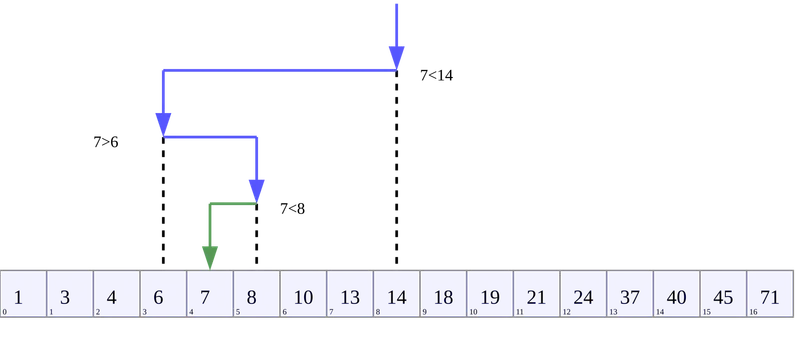
Git already ships a tool for exactly this. git bisect performs a binary search over your history: you mark one commit as bad and one as good, Git checks out a commit halfway between them, and you report whether it is good or bad. Each answer halves the remaining range, so even a large range needs only a handful of steps. With git bisect run, you hand Git a script and it does every step for you.
This tutorial walks through a complete automated bisect: writing a test script with the right exit codes, skipping commits that cannot be built, narrowing the search, handling merge commits and cleaning up afterwards. The commands match the Git reference documentation for version 2.56.0, released on 28 September 2026, and work the same way on GitHub, GitLab or any other host because bisect runs entirely in your local clone.
How the binary search works
The Git manual describes the idea plainly: you tell bisect about a bad commit that contains the bug and a good commit from before it, Git picks a commit between those two endpoints and asks you about it, and it keeps narrowing the range "until it finds the exact commit that introduced the change". At the end it prints the first bad commit and leaves the reference refs/bisect/bad pointing at it.
The output tells you how much work is left. The documentation's own example shows a range of history being reported as Bisecting: 675 revisions left to test after this (roughly 10 steps). That is the practical value of bisect: the number of steps grows with the logarithm of the range, not with its size.
Bisect is not limited to bugs. It finds the commit that changed any property you can test, such as the commit that made a benchmark slower or the commit that fixed an issue. For those cases Git lets you replace "good" and "bad" with other words, which we cover below.
Step 1: confirm the endpoints manually
Automation only helps if the endpoints are right. Before writing any script, check the two commits by hand:
- On the current commit (or the failing release), run the test and confirm that it fails for the reason you care about, not for an unrelated reason such as a missing environment variable.
- Check out a tag or commit you believe is good, run the same test and confirm that it passes.
- Write both identifiers down. Tags, branch names and commit hashes all work.
A manual session looks like this. It is useful to see once, even if you will automate it:
git bisect start
git bisect bad                 # the commit you are on is bad
git bisect good v3.4.0         # this release was known to be good
# Git checks out a commit in the middle; build and test it, then answer:
git bisect good                # or: git bisect bad
# ...repeat until Git prints "<hash> is the first bad commit"
git bisect reset               # return to where you started
You can also give both endpoints in one command: git bisect start <bad> <good>. If you know several good commits, list all of them after the bad one; every extra good commit removes history from the search.
Step 2: write a test script with the right exit codes
git bisect run runs your command on every candidate commit and reads its exit status. The rules, quoted from the manual, are short and strict:
| Exit code | Meaning to git bisect run |
|---|---|
0 | The current commit is good (or "old"). |
1 to 127, except 125 | The current commit is bad (or "new"). |
125 | This commit cannot be tested; skip it. |
Anything else (for example 255, which exit(-1) produces) | Abort the whole bisect session. |
The special case matters. If your build fails for reasons unrelated to the bug, the commit is not "bad", it is untestable, and the script should return 125. A script that reports every broken build as bad will lead bisect to the wrong commit.
Here is a small, language-neutral script. Replace the two commands with whatever builds and tests your project; the shape stays the same:
#!/bin/sh
# bisect-check.sh: keep this file OUTSIDE the repository.

# 1. Build. If the build itself is broken, we cannot judge this commit.
make build >/dev/null 2>&1 || exit 125

# 2. Run only the test that reproduces the problem.
#    It must exit 0 when the behaviour is correct and 1 when it is wrong.
./run-one-test checkout_total_includes_tax
status=$?

# 3. Map unexpected statuses so they never abort the session by accident.
if [ "$status" -gt 127 ]; then
  exit 1
fi
exit "$status"
Two details from the documentation are worth following. First, keep the script outside the working tree: the manual notes that it is safer if the test scripts live outside the repository, so that checking out old commits cannot change or delete them. Second, test one precise behaviour. A full test suite fails for many reasons over a long history, and each unrelated failure misleads the search.
Step 3: run the automated bisect
Make the script executable and start the run. The pattern below is taken directly from the manual's examples:
chmod +x ~/bisect-check.sh

git bisect start HEAD v3.4.0 --    # HEAD is bad, v3.4.0 is good
git bisect run ~/bisect-check.sh
git bisect reset                   # always clean up afterwards
Git now checks out each candidate, runs the script, records the result and moves on. When it finishes it prints the first bad commit with its author, date and message. If you do not want a separate script, the manual shows a one-line form that works for quick checks:
git bisect run sh -c "make build || exit 125; ./run-one-test checkout_total_includes_tax"Clean up automatically
Recent Git releases accept --reset-when-found on git bisect start or git bisect run. Once the first bad commit is found, Git reports it and cleans up the bisection state. The optional value original (the default) returns you to the commit you started from; found leaves the first bad commit checked out so you can inspect it. The option cannot be combined with --no-checkout.
git bisect start HEAD v3.4.0 --
git bisect run --reset-when-found=found ~/bisect-check.sh
If your team uses an older Git, check git --version and the bisect manual for your version before relying on this option; the plain git bisect reset works everywhere.
Step 4: make the search smaller and more reliable
Limit the search to the relevant paths
If you know the problem lives in one part of the tree, pass pathspecs after --. Bisect then only considers commits that touched those paths:
git bisect start HEAD v3.4.0 -- src/billing config/taxSkip commits that cannot be tested
Returning 125 from the script skips a commit automatically. In a manual session, use git bisect skip, or skip a whole range with range notation such as git bisect skip v2.5..v2.6. The manual warns about the trade-off: if you skip a commit next to the one you are looking for, Git cannot tell which of them was the first bad one, and it will list the candidates instead of naming one.
Handle merge-heavy history with --first-parent
Many teams merge pull requests with merge commits. Feature branches often contain work-in-progress commits that do not build, even though the final merge was fine. --first-parent tells bisect to follow only the first parent at each merge. The result is the merge commit that introduced the regression, and the commits inside the merged branch are ignored. The manual describes this as useful "in avoiding false positives when a merged branch contained broken or non-buildable commits, but the merge itself was OK".
git bisect start --first-parent HEAD v3.4.0 --
git bisect run ~/bisect-check.sh
Once you know the merge, you can run a second, smaller bisect inside that branch if you need the exact commit.
Use your own terms when "good" and "bad" are confusing
When you search for the commit that made something faster, or that fixed a bug, "good" and "bad" read backwards. Use old and new, or define your own words when you start:
git bisect start --term-old fast --term-new slow
git bisect slow HEAD
git bisect fast v3.4.0
# ...then: git bisect run ~/bisect-check.sh
In a run session the exit codes keep their meaning: 0 still means "old" (here, fast) and 1 to 127 still means "new" (here, slow). git bisect terms reminds you which words the current session uses.
Step 5: record, replay and recover
Mistakes happen in manual sessions: you mark a commit good when the test was actually broken. Bisect keeps a log that you can edit and replay:
git bisect log > bisect.log      # save what has been decided so far
# edit bisect.log and delete the wrong line(s)
git bisect reset
git bisect replay bisect.log     # return to the corrected state
git bisect visualize (or view) shows the remaining suspects in gitk when a graphical environment is detected and falls back to git log otherwise. Adding --stat shows which files each remaining commit touches, which often points to the culprit before bisect finishes.
When older commits need a fix to run at all
Sometimes old commits fail for an unrelated reason that was fixed later, such as an expired test certificate or a pinned dependency that no longer downloads. The manual shows a pattern for this: apply a hot-fix inside the script, test, then restore the tree so the next checkout is clean.
#!/bin/sh
# Apply a small hot-fix branch before each test, then undo it.
if git merge --no-commit --no-ff hot-fix && make build
then
  ./run-one-test checkout_total_includes_tax
  status=$?
else
  status=125        # untestable
fi
git reset --hard    # undo the temporary merge
exit $status
Base the hot-fix branch on a commit that every revision in the range already contains, so the merge brings in only the fix. The manual also suggests git cherry-pick as an alternative.
Common mistakes to avoid
- Running the whole test suite. Unrelated flaky or historical failures will be treated as "bad". Test one behaviour.
- Treating build failures as bad. Return 125 for anything that prevents testing.
- Keeping the script inside the repository. Old checkouts can remove or change it mid-run.
- Uncommitted changes. Commit or stash your work before starting, because bisect checks out other commits.
- Stale build output. If your build tool caches aggressively, clear the cache in the script so each commit is built from its own source.
- Forgetting to reset. A session left open keeps your repository on a detached commit. Run
git bisect resetor use--reset-when-found.
Summary
git bisect run turns "something broke in the last few hundred commits" into a mechanical search that finishes in a small number of steps. Confirm a good and a bad endpoint by hand, write a script that tests one behaviour and returns 0 for good, 1 for bad and 125 for untestable, keep it outside the repository, and let Git do the rest. Add pathspecs to shrink the range, --first-parent for merge-based history and custom terms when you are hunting a change rather than a bug.
A good next step is to keep a ready-made bisect-check.sh template in your team's runbook, so the next regression starts with a run, not with an afternoon of reading diffs.
Frequently asked questions
Does git bisect work with GitHub or GitLab?
Yes. Bisect runs entirely in your local clone, so it does not depend on the hosting service. Fetch the full history first; a shallow clone may not contain the good commit you want to mark.
What exit code should my script return when a commit does not build?
Return
125. Git skips that commit. Codes 1 to 127 (except 125) mean bad, 0 means good, and any other code aborts the bisect session.Why did bisect report several possible commits instead of one?
This happens when commits next to the culprit were skipped. Git cannot tell which of the untested neighbours was the first bad one, so it lists them. Fix the build for those commits, for example with a temporary patch inside the script, and run again.
How do I stop a bisect session halfway?
Run
git bisect reset. It returns you to the commit that was checked out beforegit bisect start. Usegit bisect logfirst if you want to keep a record of what was decided.
Your next customer could start right here.
Introduce your tool, product or business to readers exploring technology.
Explore placements and request a private quote
Sources
- git-bisect documentation (last updated in 2.56.0) — Git project
- Git homepage: 2.56.0 release notes — Git project, 2026-09-28
- git-merge documentation — Git project
Written with substantial AI assistance. Facts checked against cited sources. Editorial policy.
Comments
No comments yet. Be the first to join the conversation.
Leave a comment
Every comment is read by a moderator before it appears. Your email address is never published; it is used only to contact you about this comment.
More from Cloudsoft Zone
Resource guideWordPress
WordPress security hardening checklist for 2026 (WordPress 7.1)
A practical WordPress 7.1 hardening checklist based on the official handbook: updates, two-step logins, wp-config.php constants, file permissions, database privileges, firewalls, WP-CLI checksum checks and tested backups.
By Cloudsoft Zone

Troubleshooting guideCodeIgniter
CodeIgniter 4 validation not working? 9 causes and fixes
Fix CodeIgniter 4 validation problems fast: wrong input source, lost errors after redirect, permit_empty, strict JSON rules, is_unique placeholders and more.
By Cloudsoft Zone

Interview preparationInterview questions
Docker interview questions and answers for Docker Engine 29
18 Docker interview questions from images and volumes to build cache, Compose, networking, signals and the containerd image store, with short model answers.
By Cloudsoft Zone