
Docker container keeps restarting: diagnose exit state, configuration and resource failures
When a Docker container keeps restarting, preserve its exit state and first error, check the intended entry point and isolate resource, configuration and dependency failures.
5 min read
In this article
The release command finishes, but the application remains unavailable and the same startup message appears every few seconds. Increasing the restart count does not help. The configured main process is still failing for the same reason.
When a Docker container keeps restarting, capture the exit evidence before changing anything. The steps read exit state in a Docker restart loop, check whether Docker exit code 137 really came from an out-of-memory kill, validate the entry point and configuration, and verify one fix.
When a Docker container keeps restarting, capture the exit evidence before changing commands, credentials or memory limits. This guide separates a process exit from an unhealthy check and follows the failure from the selected artifact to the public request path.
Our production Node.js image guide explains the underlying artifact. Keep retained database and upload storage untouched while diagnosing its operating lifecycle.
Step 1: Scope the selected service
Confirm the Compose project, file set and service involved. Do not inspect or restart every container on a shared machine. The following commands illustrate a known acme-prod project and web service:
docker compose --project-name acme-prod --file compose.yaml ps --all web
docker compose --project-name acme-prod --file compose.yaml \
  logs --no-color --tail 100 web
Read the transcript privately because application logs can contain sensitive data. Preserve the first useful error and time, not only the final repeated banner.
Find the actual container ID from the scoped service listing. Names vary with project and container naming configuration; do not assume an example name identifies the intended application.
Step 2: Read exit state and restart behavior
Inspect only the needed state fields rather than dumping configuration and environment values. For a confirmed container name, an illustrative command is:
docker inspect acme-prod-web-1 \
  --format 'exit={{.State.ExitCode}} oom={{.State.OOMKilled}} restarts={{.RestartCount}}'
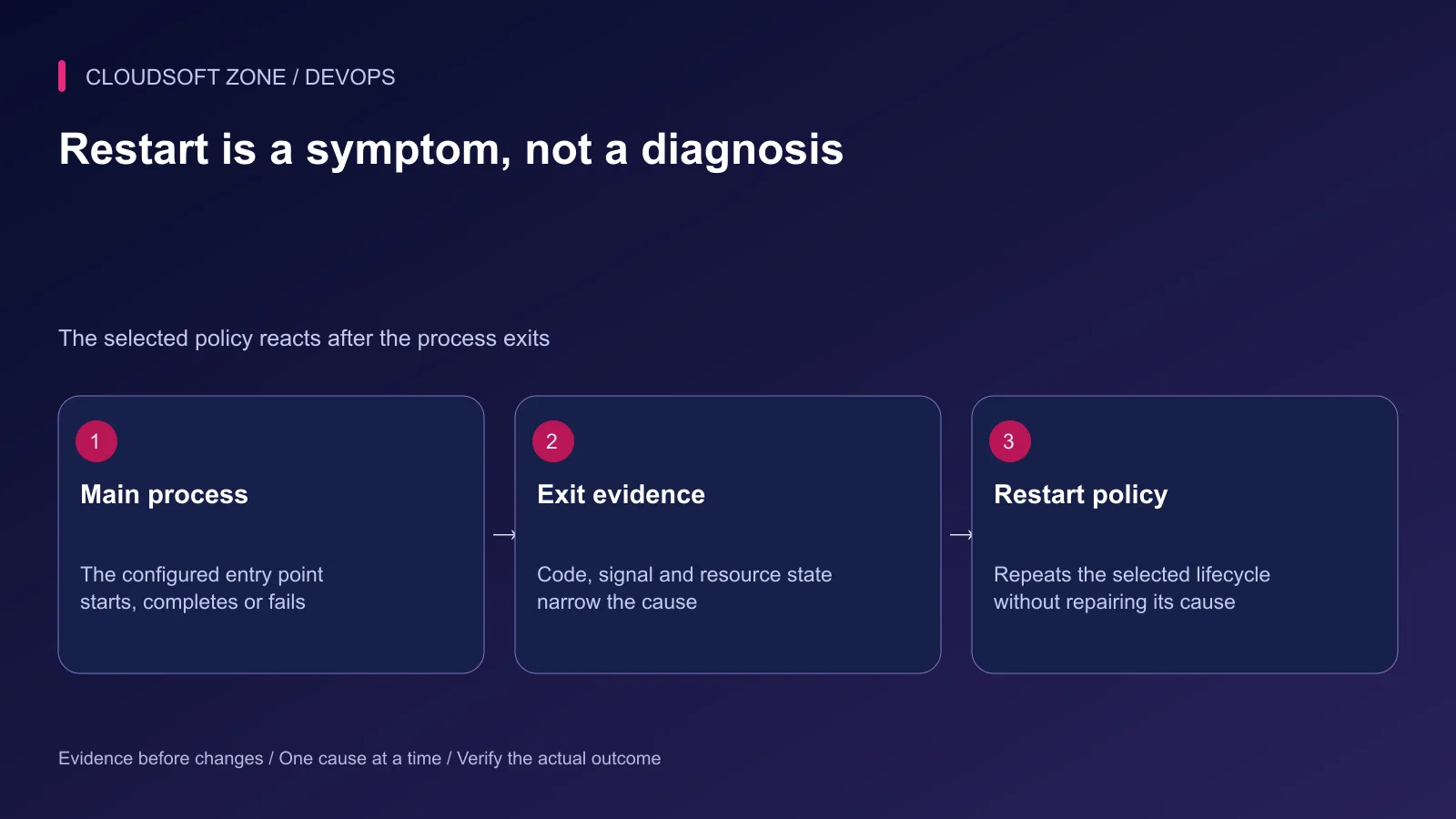
Compare those fields with the selected restart policy and host timeline. A policy can repeat a failure but does not repair missing files or credentials.
| Evidence | Next question |
|---|---|
| Exit 0 under an always-style policy | Is a short-lived command being used as the server? |
| Nonzero exit with startup error | Which artifact or required setting failed? |
| Exit 137 | Was SIGKILL caused by OOM or another actor? |
| OOMKilled plus memory evidence | Which workload exceeded its resource boundary? |
| Unhealthy but main process running | Is only the health command failing? |
Do not call every unhealthy container a restart loop. Normal standalone restart policies react to process exit; another orchestrator or watcher may have a separate health-based action.
Step 3: Validate the entry point and artifact
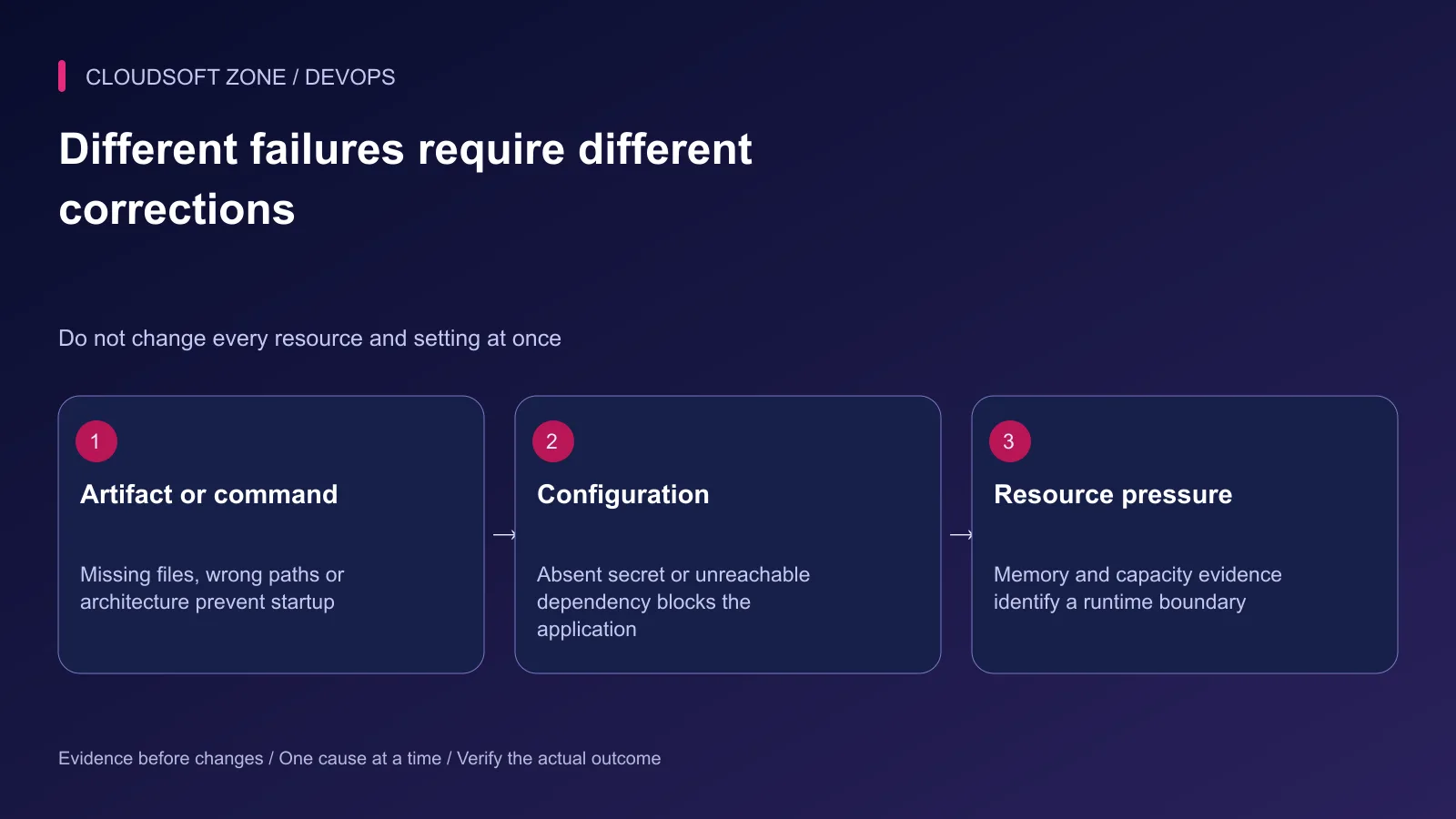
Check that the final image contains the intended server path and dependencies. A development command, completed migration command or shell script that backgrounds the server can cause the main container process to finish unexpectedly.
Review working directory, command overrides, executable permissions and platform architecture. An exec-format failure needs a compatible artifact or interpreter contract, not broader file permissions.
A bind mount can hide code or dependencies copied into the image. Compare effective mounts with the image's expected filesystem before rebuilding the application unnecessarily.
Step 4: Diagnose required configuration
Check the names and delivery mechanism for required environment values or secret files without printing their contents. A mounted secret is not automatically read by every framework or image.
Verify the configured private service address from inside the intended network. localhost inside a container identifies that container, not a separate database service or the host by default.
Classify a dependency failure: name resolution, connection refusal, authentication or application schema mismatch. Repeated restarts can amplify connection attempts without making the dependency ready.
Step 5: Investigate memory with corroborating evidence
An exit code alone does not establish the memory cause. Correlate OOMKilled, container limits, host pressure and the application's activity before termination.
Compare normal startup demand with the failing workload. An image that tries to compile during startup can have a very different memory profile from one that starts an already built server.
Do not raise memory for every service after one failure. Fix unbounded allocation or concurrency where possible and verify host headroom before increasing a reviewed limit. Our Node.js memory-leak guide covers application evidence.
Step 6: Reproduce privately without destructive resets
Use the same artifact in an isolated rehearsal with synthetic data and protected test credentials. Keep payment, mail and other external effects disabled or intentionally sandboxed.
If the process exits too quickly for exec, inspect the artifact through a deliberately selected diagnostic command in the rehearsal environment. Do not repeatedly recreate the live database or remove its volume to make the application boot.
When an incompatible database format or permissions problem is involved, preserve the retained state and obtain the correct compatible operating procedure. A successful empty initialization is not recovery of the customer's records.
Step 7: Correct one cause and verify stability
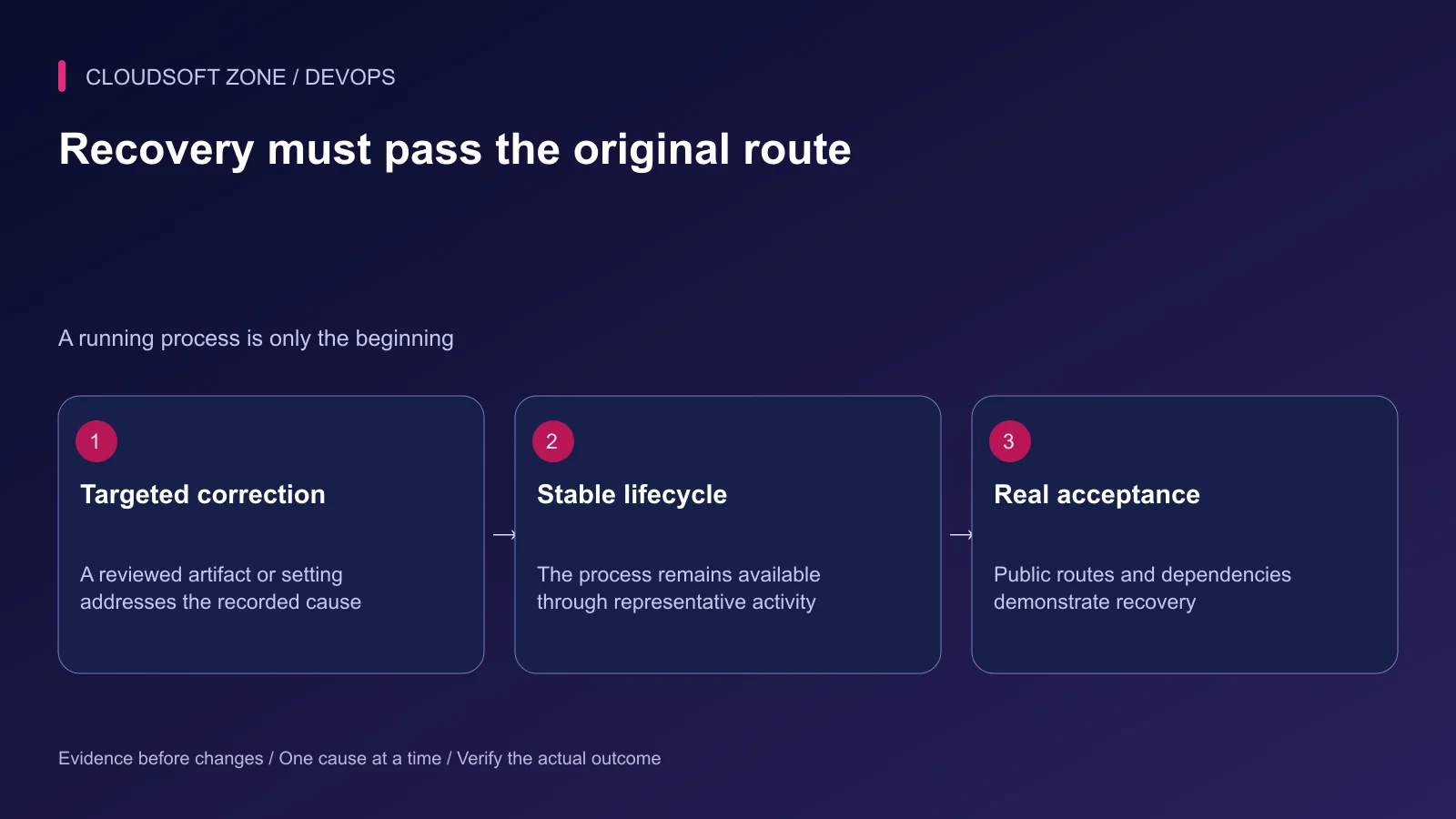
Apply the reviewed artifact, entry-point or configuration correction. Recreate only the intended service through its existing release process. Keep a compatible previous image and configuration available.
| Acceptance case | Expected evidence |
|---|---|
| Initial startup | Clear completion and intended long-running main process |
| Public route | Correct application response through the actual proxy |
| Database and cache access | Authenticated dependency operations succeed |
| Representative workload | Resource use stays within the reviewed budget |
| Graceful stop/replacement | Accepted work follows the bounded lifecycle |
| Dependency unavailable | Clear bounded failure without a retry storm |
Watch restart count and response failures together. A stable process that cannot serve authenticated requests has not completed recovery.
Step 8: Preserve the incident record
Record the first error, exit evidence, diagnosed boundary and targeted correction. Remove temporary diagnostics through the same scoped review, while retaining enough evidence for future incidents.
Do not use global image or volume pruning as the final cleanup step. For a container lifecycle and reliability review, contact Cloudsoft Zone.
Featured image: Cloudsoft Zone technical layout with docker artwork by dotCloud, Inc. (Apache License 2.0). Product mark resized proportionally for identification; no endorsement implied. Layout: CC BY-SA 4.0.
Frequently asked questions
Does an unhealthy Docker health check automatically restart a container?
Not under a normal standalone Docker restart policy. Health status and process exit are separate signals; an external orchestrator or watcher may add its own behavior.
Does exit code 137 always mean the container ran out of memory?
No. It commonly reflects termination by SIGKILL, which can have several causes. Correlate OOMKilled state, host evidence and resource usage before diagnosing memory exhaustion.
Should I delete the container volumes to stop a restart loop?
No. Retained storage may contain the only current application data. Diagnose command, configuration, compatibility and permissions first; any data disposal requires a separate reviewed decision.
Sources
- Docker restart policies — Docker
- Docker memory and resource constraints — Docker
- Container state inspection — Docker
- Scoped Compose logs — Docker
- Docker health-check semantics — Docker
Read next
TutorialDevOps5 min read
Docker networking for web, API, database and Redis containers: names, ports and trust boundaries
Understand Docker networking through service-name DNS, container versus host ports and explicit network membership. Diagnose connectivity without publicly exposing databases.
Comments
No comments yet. Be the first to join the conversation.
Leave a comment
Every comment is read by a moderator before it appears. Your email address is never published; it is used only to contact you about this comment.
More from Cloudsoft Zone
TutorialDevOps5 min read
Docker volumes explained: prevent database and uploaded-file loss during container changes
Use Docker volumes with explicit project ownership, correct mount targets and independent backups. Diagnose an apparently empty database before deleting or recreating retained storage.
By Nilesh Kushvaha
TutorialDevOps5 min read
How to reduce Docker image size and build time without removing required runtime files
Reduce Docker image size with measured layers, a smaller context and separate build/runtime stages. Improve cache reuse while retaining native dependencies, assets and patch updates.
By Nilesh Kushvaha
ComparisonDevOps5 min read
Development vs production Docker Compose: separate live code, ports, secrets and retained data
Compare development vs production Docker Compose through image artifacts, bind mounts, configuration merges and isolated project data. Keep convenience overrides out of live releases.
By Nilesh Kushvaha