
A 2FA and backup checklist for small businesses
A practical afternoon checklist for owners: protect the accounts that matter with passkeys or 2FA, clean up old access, keep two backups including one offline, and prove you can restore. Includes CERT-In and DPDP notes for India.
8 min read

In this article
Most small-business security incidents do not start with a clever exploit. They start with a reused password on an email account, a phone number taken over to intercept text-message codes, or ransomware that encrypts the only copy of the invoices. Two controls defeat a large share of these: strong sign-in protection on the accounts that matter, and backups that survive the same event that hit your laptop.
This is a practical checklist for owners and the person who "does the IT" in a team of 1 to 50 people. It is based on guidance published by the UK National Cyber Security Centre (NCSC) for small organisations and the US Cybersecurity and Infrastructure Security Agency (CISA), with notes on Indian requirements from CERT-In and the Digital Personal Data Protection Rules, 2025. You can work through it in an afternoon and repeat the review every quarter.
Step 1: list the accounts that would hurt most
You cannot protect everything at once, so start with the accounts whose loss would stop the business or expose customers. The NCSC's small organisations guide suggests checking every account "that store[s] customer or staff information, or would cause serious disruptions if stolen", and gives examples including banking and finance, HR and payroll, social media, online storage, your company website and domain hosting, and point-of-sale software.
Email comes first. Whoever controls your email can reset almost every other password, which is why the NCSC guide treats securing email as its own step before the other accounts. Then add:
- Domain registrar and DNS provider (your website and email depend on them).
- Cloud hosting, code hosting and app-store accounts.
- Payment gateway and online banking.
- Accounting, invoicing and, in India, the GST portal and income-tax logins.
- Social media pages and advertising accounts.
- The password manager itself, if you use one.
Write the list down with the owner of each account and the recovery email and phone number on file. Out-of-date recovery details are a common way to lose an account permanently.
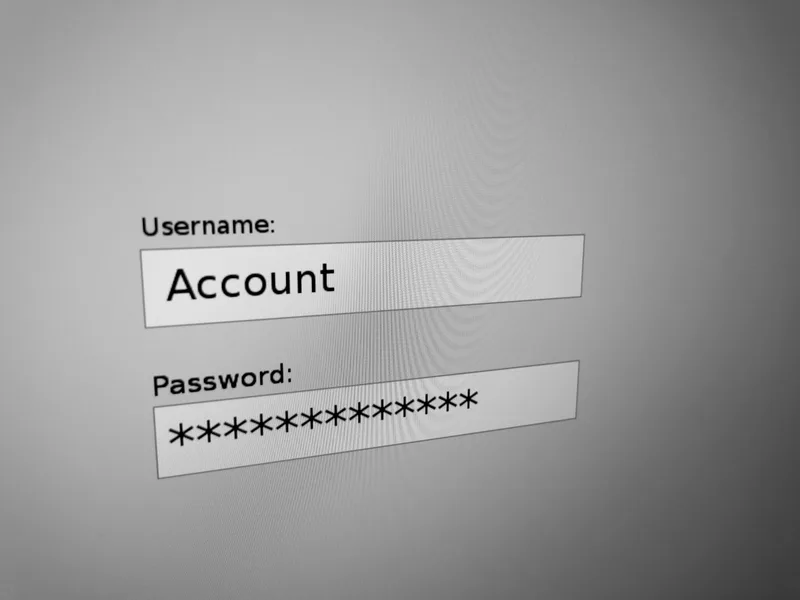
Step 2: choose the strongest sign-in each service offers
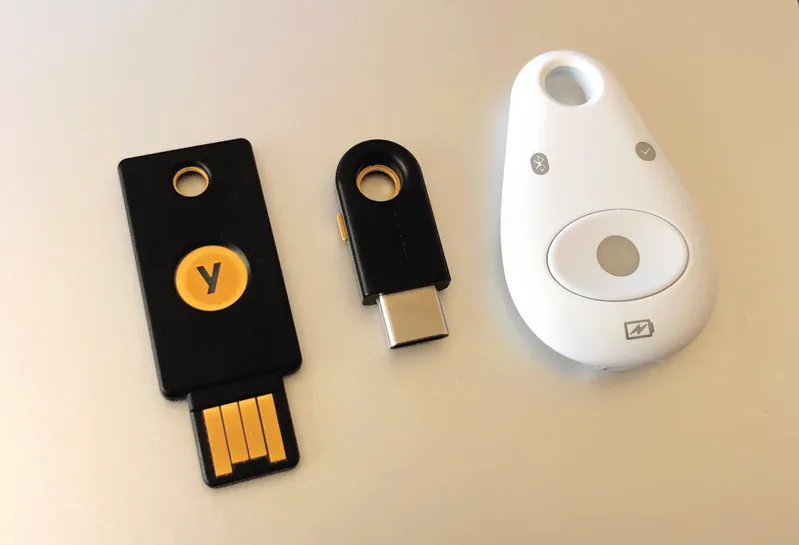
Two-factor authentication (2FA), also called multi-factor authentication (MFA) or 2-step verification (2SV), asks for something beyond the password. The methods are not equal. CISA calls FIDO/WebAuthn authentication the most secure option because "when a malicious cyber actor tricks a user into logging into a fake website, the FIDO protocol will block the attempt", and ranks SMS codes as the weakest common method. It also stresses that "any MFA is better than no MFA".
| Method | Resists phishing? | Use it for |
|---|---|---|
| Passkeys or hardware security keys (FIDO2/WebAuthn) | Yes: the key only signs in to the real site | Email, domain, cloud, banking, admin accounts |
| Authenticator app (time-based codes) or push with number matching | Partly: a code can still be typed into a fake site | Accounts that do not yet support passkeys |
| SMS or voice codes | No, and exposed to SIM-swap fraud | Only where nothing else is offered, as a last resort |
| Password only | No | Nothing that matters |
The NCSC now recommends passkeys for business-critical accounts "as a priority" where they are available, noting that "you can't be tricked into sharing a passkey with a criminal." Where a service does not support passkeys, use a strong, unique password plus 2SV. Even with a passkey, if the account still has a password, it should be strong, unique and backed by 2SV.
Practical setup tips
- Register two factors per critical account: for example, a passkey on your phone and a hardware key kept in the office safe. Losing one device should not lock you out.
- Save backup codes when a service offers them, in your password manager or printed and stored securely, not in your email.
- Turn on number matching if you use push approvals. CISA describes it as a way to "block mobile push bombardment", where an attacker sends repeated prompts hoping someone taps Approve.
- Use a password manager so every password is long and unique; reused passwords are what attackers try first after a breach elsewhere.
Step 3: clean up accounts and access
Over time, businesses accumulate accounts for former staff, freelancers and suppliers. The NCSC guide calls out that "when people leave or no longer need access, those accounts often stay active". Each one is a door that nobody is watching.
- Export the user list from email, cloud storage, accounting and hosting tools.
- Remove anyone who has left; downgrade anyone who has more access than their job needs.
- Make sure at least two trusted people hold administrator rights on email and the domain registrar, each with their own login, never a shared one.
- Rotate shared passwords that former staff could have seen.
- Add "remove access" to your offboarding checklist so this does not pile up again.
Step 4: decide what to back up and where
The NCSC advises making a backup of "all the data that your business needs to operate", which "could include your website, emails, invoicing, documents, presentations, contacts and customer information." It lists the ways you lose access: ransomware that locks your data, a device that is lost, stolen or broken, or simply moving to a new device.
A workable plan for a small business has at least two copies in different places:
- An online (cloud) backup such as a backup service or your cloud storage provider's versioning, protected by 2SV. The NCSC notes you should "protect your online backups by turning on 2-step verification".
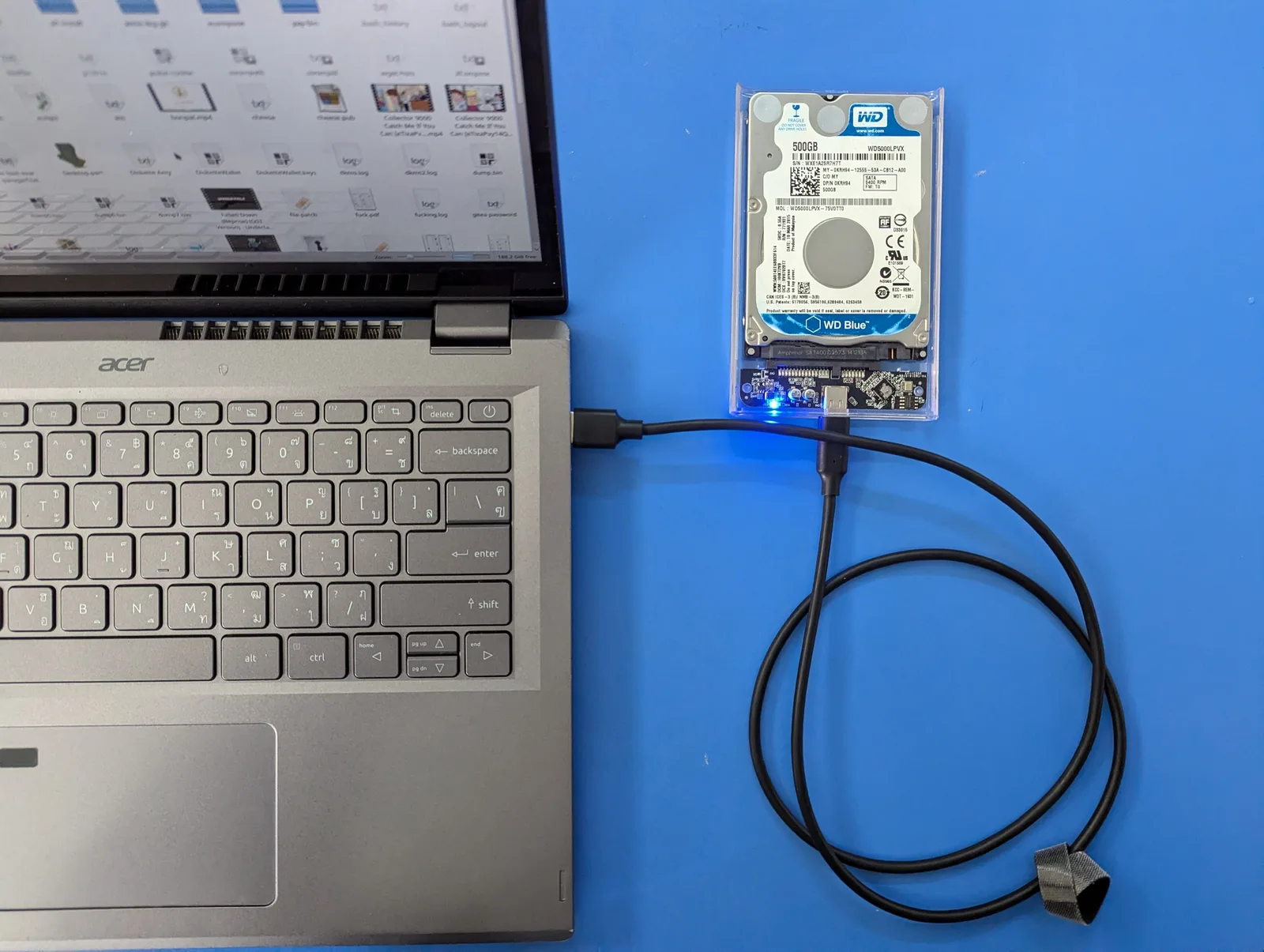
- An offline copy on an external drive that is disconnected when not in use. The NCSC warns that the device "should not stay connected to your device when not in use, as some viruses will also affect devices that are connected to an infected computer."
The guide's own tip is to use both, "in case one of them is lost or stolen, or if the storage device fails". Remember that file sync is not a backup on its own: if ransomware encrypts a synced folder, the encrypted files can sync too. Choose a service that keeps previous versions, and check how long it keeps them.
Do not forget software-as-a-service data
Data in online tools is easy to overlook. Check each service you rely on for an export or backup option and schedule it: your website and its database, your online store, your accounting system, and your email archive. Read the provider's terms about deleted-item retention; it is often shorter than people assume.
Step 5: prove you can restore
A backup you have never restored is a hope, not a plan. The NCSC says that once you have made a backup, "it's important you know how to restore it, and to check that it contains all your important data." Put a restore test in the calendar:
- Monthly: restore a random folder or a single file from last week to a different location and open it.
- Quarterly: restore one complete system, such as the website or the accounting data, onto a spare machine or a test environment, and time how long it takes.
- After any change to your backup tool or storage provider, repeat the quarterly test.
Write the restore steps down where someone else can follow them. The person who set up the backups may be the one who is unavailable on the day you need them.
Indian requirements to keep in mind
If your business operates in India, two official instruments touch these controls directly.
CERT-In directions (28 April 2022). Issued under section 70B(6) of the Information Technology Act, 2000, they apply to service providers, intermediaries, data centres, body corporates and government organisations. They require reporting of specified cyber incidents to CERT-In "within 6 hours of noticing such incidents", enabling logs of all ICT systems and keeping them "for a rolling period of 180 days" within Indian jurisdiction, and synchronising system clocks with NTP servers of NIC or NPL or servers traceable to them. Most incorporated businesses will fall within these categories, but confirm your position with an adviser; in practice, keep logs from your firewall, email and cloud accounts long enough, and know how to report.
Digital Personal Data Protection Rules, 2025. Rule 6 lists minimum "reasonable security safeguards" for anyone processing personal data, including encryption or masking, access control, logs and monitoring, and "reasonable measures for continued processing", explicitly naming "data-backups". It also requires keeping such logs and personal data for one year for investigating unauthorised access. Rule 6 is among the obligations that come into force 18 months after the Rules were published in the Gazette on 13 November 2025. Our separate DPDP explainer covers the rest.
The checklist
| Done | Control | Review |
|---|---|---|
| ☐ | List of critical accounts, owners and recovery details | Quarterly |
| ☐ | Passkeys or security keys on email, domain, hosting and banking | Quarterly |
| ☐ | 2SV (app-based, not SMS where possible) on every other business account | Quarterly |
| ☐ | Two administrators with separate logins on email and domain | Quarterly |
| ☐ | Backup codes stored securely, outside email | When changed |
| ☐ | Former staff and suppliers removed; shared passwords rotated | On every departure |
| ☐ | Online backup with version history and 2SV | Monthly check |
| ☐ | Offline backup on a disconnected drive | Monthly |
| ☐ | SaaS exports scheduled (website, store, accounting, email) | Monthly |
| ☐ | Restore tested and the steps written down | Monthly and quarterly |
| ☐ | India: logs kept 180 days; CERT-In reporting contact known | Annually |
Next steps
Start with email and the domain registrar today: add a passkey or security key, remove old users, and confirm the recovery details. This week, set up the second backup copy and run your first restore test. Then put the quarterly review in the calendar. None of this needs a security team; it needs an owner and a date.
Frequently asked questions
Is SMS two-factor authentication good enough?
It is better than nothing, but CISA ranks SMS as the weakest common method. Prefer passkeys or hardware security keys for critical accounts, and an authenticator app where those are not supported.
Is cloud sync the same as a backup?
No. If ransomware encrypts a synced folder, the damaged files can sync too. Use a service that keeps previous versions, and keep a second, offline copy.
How often should we test restoring a backup?
A practical rhythm is a small file restore monthly and a full system restore quarterly, plus a test after any change to your backup setup.
What do Indian businesses need to report after a cyber incident?
CERT-In's directions of 28 April 2022 require specified cyber incidents to be reported to CERT-In within 6 hours of noticing them. From May 2027, the DPDP Rules, 2025 also require notifying affected people and the Data Protection Board of personal data breaches.
Your next customer could start right here.
Introduce your tool, product or business to readers exploring technology.
Explore placements and request a private quote
Sources
- More than a Password (Multifactor Authentication) — Cybersecurity and Infrastructure Security Agency
- Small organisations guide to cyber security: Secure your important online accounts — National Cyber Security Centre (UK)
- Small organisations guide to cyber security: Backing up your data — National Cyber Security Centre (UK), 2026-04-09
- Directions under section 70B(6) of the IT Act, 2000 — CERT-In, Ministry of Electronics and Information Technology, 2022-04-28
- Digital Personal Data Protection Rules, 2025 (Gazette G.S.R. 846(E)) — Ministry of Electronics and Information Technology, 2025-11-13
Written with substantial AI assistance. Facts checked against cited sources. Editorial policy.
Comments
No comments yet. Be the first to join the conversation.
Leave a comment
Every comment is read by a moderator before it appears. Your email address is never published; it is used only to contact you about this comment.
More from Cloudsoft Zone

Resource guideBusiness Technology
10 practical AI automation ideas for small businesses in 2026
Ten AI automations that work for small teams in 2026, each with the workflow, real tools and checked prices, rough effort, risks, and the human review step that keeps it safe.
By Cloudsoft Zone

Resource guideWordPress
WordPress security hardening checklist for 2026 (WordPress 7.1)
A practical WordPress 7.1 hardening checklist based on the official handbook: updates, two-step logins, wp-config.php constants, file permissions, database privileges, firewalls, WP-CLI checksum checks and tested backups.
By Cloudsoft Zone
Troubleshooting guideCodeIgniter
CodeIgniter 4 validation not working? 9 causes and fixes
Fix CodeIgniter 4 validation problems fast: wrong input source, lost errors after redirect, permit_empty, strict JSON rules, is_unique placeholders and more.
By Cloudsoft Zone