
Install multiple Node.js versions on Windows with NVM for Windows 2
Run Node.js 22, 24 and 26 side by side on Windows with NVM for Windows 2: install, switch, pin versions per project, keep global packages straight and fix common errors.
Updated 8 min read

In this article
If you maintain more than one Node.js project on Windows, you will eventually need two Node.js versions on the same machine: an older service still on Node.js 22 and a new one on 24. NVM for Windows lets you install several versions side by side, switch between them with one command, and, since version 2, pick the right version automatically per project folder. This guide covers installing it, switching and pinning versions, keeping global packages straight, and fixing the errors people hit most often.
Updated for NVM for Windows 2.0.1 (released 2 October 2026) and the October 2026 Node.js release lines. Commands are taken from the official NVM for Windows documentation for v2; version numbers are from the nodejs.org release index, checked on 10 October 2026.
Which Node.js versions to install
As of 10 October 2026 the supported lines are:
| Line | Status | Latest release | End of life |
|---|---|---|---|
| 26.x | Current; becomes LTS on 28 October 2026 | 26.11.1 | 30 April 2029 |
| 24.x (Krypton) | Active LTS; maintenance from 20 October 2026 | 24.21.0 | 30 April 2028 |
| 22.x (Jod) | Maintenance LTS | 22.23.3 | 30 April 2027 |
| 20.x (Iron) | End of life since 30 April 2026 | 20.20.2 | Ended |
For day-to-day work, install the current LTS line and whatever older line your existing projects still need. Our guide to which Node.js version to use in October 2026 explains the schedule and the move to one major release a year from Node.js 27.
What changed in NVM for Windows 2
NVM for Windows is a separate project from nvm (nvm-sh) for macOS and Linux; the two have different commands. Version 2.0.0 shipped on 2 September 2026 as a full rewrite, and the repository moved from coreybutler/nvm-windows to github.com/nvm-windows/nvm. The changes that matter most for developers:
- No administrator rights needed. v1 created a symlink, which often needed an elevated terminal. v2 installs per user under
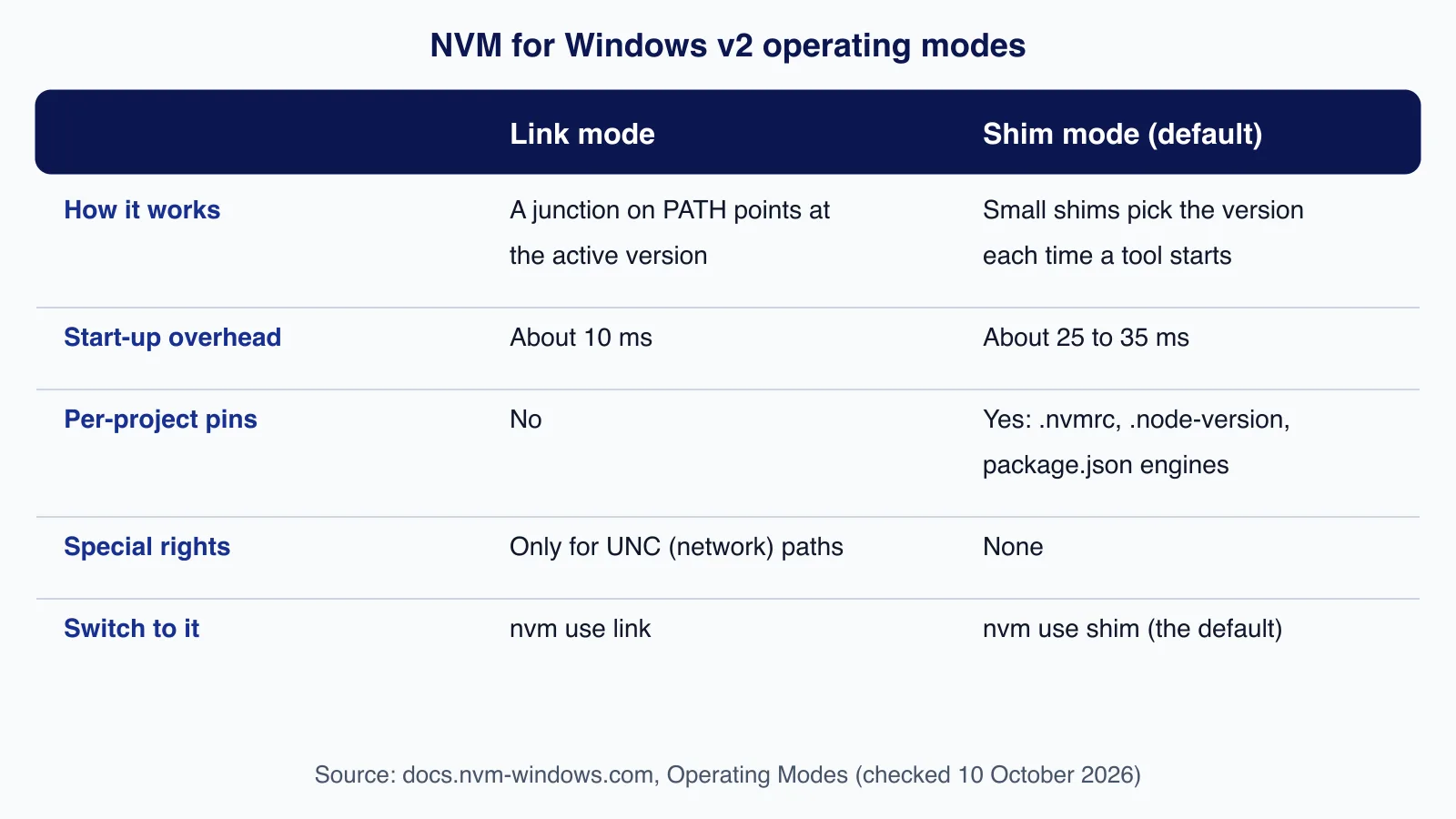
%LOCALAPPDATA%\Author Software\nvm, and the project says not to run the community installer as Administrator. - Two operating modes. Shim mode (the default) puts small launchers in front of
node,npmandnpx. Link mode keeps a v1-style junction. - Per-project versions. In shim mode, NVM reads
.nvmrc,.node-versionor theengines.nodefield ofpackage.jsonand runs the matching version. - New commands.
nvm pin,nvm default,nvm alias add,nvm envandnvm doctorare new; the v1 commandnvm list availableis replaced bynvm list releases.
Step 1: Remove any existing Node.js installation
Microsoft's Node.js on Windows guide recommends removing existing Node.js and npm installations before installing a version manager. Uninstall Node.js from Settings > Apps > Installed apps, then check that C:\Program Files\nodejs is gone. The v2.0.1 installer also detects an official Node.js installation and offers to deal with it, but a clean start avoids the most common problem: an old node.exe earlier on PATH than NVM's.
Global npm packages from the old installation live in %APPDATA%\npm. Note what is there (npm ls -g --depth=0) before you uninstall, so you can reinstall the ones you need.
Step 2: Install NVM for Windows
- Open the releases page and download the setup file for your processor:
nvm-2.0.1-x64-setup.exefor most PCs,nvm-2.0.1-arm64-setup.exefor Windows on Arm. Prereleases are marked as such; use the latest stable release. - Run it as your normal user. It may show a UAC prompt to register an Event Viewer log source; declining that does not stop NVM working.
- If you have v1 installed, the v2 setup program migrates it. The old v1 updater cannot upgrade to v2.
- Open a new PowerShell or Command Prompt window so the updated
PATHis loaded.
Step 3: Install Node.js versions
Version specifiers can be lts, latest, a named line such as lts/jod, a major (24), a major and minor (24.21) or an exact version. You can install several at once; v2 downloads them in parallel.
nvm --version
nvm install lts
nvm install 22
nvm list
nvm list marks the default with (default). To see what is available to download, use nvm list releases.
Step 4: Switch versions and set the default
nvm use sets the default version for your user. The old advice to run nvm alias default 18 comes from nvm-sh on macOS and Linux and never worked on Windows.
nvm use 24
node -v
nvm use 22
node -v
nvm default
nvm use last switches back to the previous default, which is handy when you alternate between two projects.
Step 5: Pin a version per project
Switching by hand is easy to forget. In shim mode, pin the version in the project instead, and NVM picks it whenever you run node or npm inside that folder:
cd C:\code\legacy-shop
nvm pin 22 --file=.nvmrc

cd C:\code\new-api
nvm pin 24 --file=package.json
nvm pin resolves the specifier and writes the exact version. For package.json it updates engines.node and engines.npm, and fails if there is no package.json in the current directory. If no pin file is found, the default version runs. The same .nvmrc also drives CI, so laptops and pipelines agree:
# GitHub Actions: read the same pin file the team uses locally
- uses: actions/setup-node@v4
  with:
    node-version-file: '.nvmrc'
Aliases are useful for names that mean something to your team:
nvm alias add legacy 22.23.3
nvm use legacy
nvm alias list
Global packages are per version
Each Node.js version has its own global node_modules. If you install a CLI globally on 22 and switch to 24, it is not there. You can carry the list across when installing a new version:
# Install 24 and reinstall the global modules you had on 22
nvm install 24 --from=22.23.3

# Or copy them across directly
nvm install 24 --copy-from=22.23.3
Also note that Node.js 25 and later no longer bundle Corepack, so on Node.js 26 install pnpm or Yarn explicitly (npm install -g pnpm) or through Corepack installed from npm. For project tools, prefer local devDependencies run with npx over global installs.
Common errors and fixes
| Symptom | Cause | Fix |
|---|---|---|
'nvm' is not recognized | The terminal was opened before installation. | Close every terminal (and restart VS Code) so the new PATH loads. |
node -v shows the wrong version after nvm use | Another node.exe is earlier on PATH, usually C:\Program Files\nodejs, or a pin file in the folder overrides the default. | Run where.exe node; remove the old installation; check for .nvmrc or engines.node. |
vX is not installed | The pinned or requested version is missing and auto_install is off. | nvm install X, or nvm use X --install. |
A global CLI such as yarn is "not recognized" after switching | Globals belong to the version they were installed with. | Reinstall on the new version or use --from/--copy-from. |
| Link mode fails to activate | The install root is on a network (UNC) path, which needs a symlink and the "Create symbolic links" privilege. | Use shim mode (nvm use shim), or enable Developer Mode. |
| Everything is configured for the wrong user | The community installer was run as Administrator. | Uninstall and reinstall from your own account. |
For anything else, collect the project's own diagnostics before changing settings:
where.exe node
nvm env
nvm doctor
When not to use NVM for Windows
- Shared machines and build servers. Microsoft's guide notes that NVM is designed per user and per shell, and that several users or build agents on one box can interfere with each other. On CI, use the runner's own setup step (such as
actions/setup-node) or a container image with a fixed Node.js version. - When production runs on Linux. Developing in WSL 2 with nvm-sh, or in a Dev Container, keeps your tooling closer to the server. Our guide to a production Dockerfile for Node.js 24 shows how to pin the runtime in the image instead.
- Managed corporate fleets. The project sells separately licensed Certified Builds with MSI and Intune packages and central policy; use those, or your IT department's packaging, rather than per-user installs.
Alternatives: fnm, Volta and mise
- fnm (Fast Node Manager, 1.39.0) is cross-platform, reads
.nvmrcand.node-version, and installs withwinget. It needs one line in your PowerShell profile:
winget install Schniz.fnm
# then add this line to your PowerShell profile
fnm env --use-on-cd --shell powershell | Out-String | Invoke-Expression- Volta is now marked unmaintained in its README; its maintainers recommend migrating to mise. Do not adopt Volta for new machines.
- mise manages Node.js alongside other runtimes and is a reasonable choice if your team also needs Python, Go or Java versions per project.
If your team is juggling several Node.js versions because older services are stuck on end-of-life releases, the real fix is upgrading them. Our application maintenance and support service plans and carries out Node.js upgrades with tests, so every project can run on a supported LTS line.
Frequently asked questions
Do I need to run NVM for Windows as Administrator?
No. Version 2 installs per user and needs no special rights in its default shim mode. The project specifically warns against running the community installer as Administrator, because it then configures NVM for the administrator account instead of yours.
How do I set a default Node.js version with nvm-windows?
Run
nvm use 24(or any version). In NVM for Windows,nvm usesets the default;nvm defaultshows it. Thenvm alias defaultcommand belongs to nvm-sh on macOS and Linux.Does NVM for Windows read .nvmrc files?
Yes, in shim mode (the default in v2). It checks
.nvmrc,.node-versionandpackage.jsonengines.node, and supports exact versions and ranges such as^22.nvm pinwrites the file for you.Why did my global npm packages disappear after switching versions?
Each Node.js version has its own global packages. Reinstall them on the new version, or install the new version with
--from=<old version>or--copy-from=<old version>to carry them across.Should I use Volta instead?
Not for new setups. Volta's README now says it is unmaintained and recommends mise. On Windows, NVM for Windows 2 or fnm are the practical choices.
Your next customer could start right here.
Introduce your tool, product or business to readers exploring technology.
Explore placements and request a private quote
Sources
- NVM for Windows releases — NVM for Windows (GitHub), 2026-10-02
- What's new in NVM for Windows v2 — NVM for Windows
- Operating modes — NVM for Windows
- Version resolution — NVM for Windows
- nvm install command — NVM for Windows
- Troubleshooting — NVM for Windows
- Set up Node.js on native Windows — Microsoft Learn, 2026-09-27
- Node.js release index — Node.js
- fnm: Fast Node Manager — fnm (GitHub)
- Volta README (unmaintained notice) — Volta (GitHub)
Written with substantial AI assistance. Facts checked against cited sources. Editorial policy.
Comments
No comments yet. Be the first to join the conversation.
Leave a comment
Every comment is read by a moderator before it appears. Your email address is never published; it is used only to contact you about this comment.
More from Cloudsoft Zone

TutorialNode.js
How to test a Node.js API with the built-in test runner (node:test)
Write, run, mock and measure coverage for a small Node.js HTTP API using only node:test and node:assert. Covers port-0 servers, fetch(), spies, t.mock.method(), fake dates and coverage thresholds.
By Cloudsoft Zone

TutorialNode.js
Node.js streams in practice: pipeline(), backpressure and async generators
Process files of any size in Node.js with flat memory use. A hands-on guide to stream/promises pipeline(), backpressure, async generator transforms, AbortSignal timeouts and streaming downloads over HTTP.
By Cloudsoft Zone

Industry updateNode.js
Which Node.js version to use in October 2026: LTS lines and the new schedule
Node.js 26 becomes LTS on 28 October 2026, Node.js 24 moves to maintenance and 20.x is already end of life. Here is every supported line, the new yearly release model from Node.js 27, and which version to run.
By Cloudsoft Zone